asNeoVisual 1.0 beta - fixed - for Win version 26

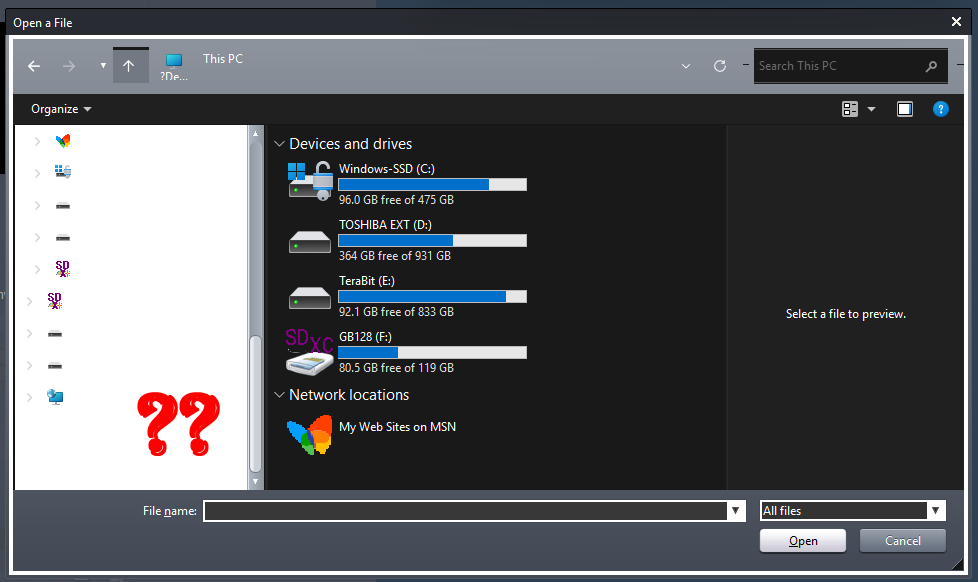
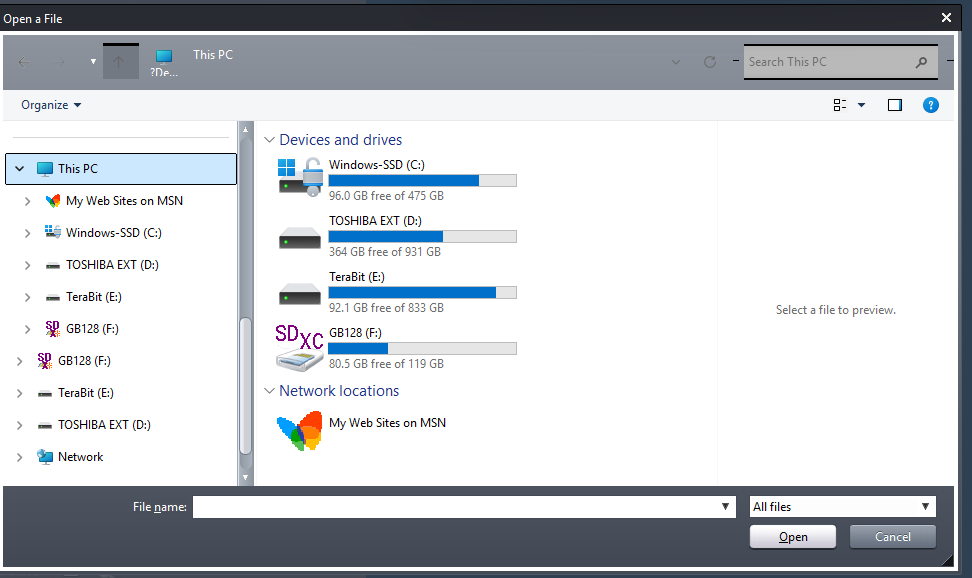
Quote from fkapnist on September 30, 2026, 11:27 amIf you are using the asNeoVisual 1.0 beta skins plugin with new version 26 of VisualNEO Win, the file open dialog box may contain text that is not visible.
This is because version 26 now uses Windows "Themes" which the user may customize.So I wrote two batch files to switch between light and dark themes to make the file open dialog text visible:
themeSETaero.bat
....
@echo off
start "" "C:\WINDOWS\resources\Themes\aero.theme"
timeout /t 3 /nobreak >nul
taskkill /f /im systemsettings.exe >nul 2>&1
Exit

.....................

themeSETdark.bat
....
@echo off
start "" "C:\WINDOWS\resources\Themes\dark.theme"
timeout /t 3 /nobreak >nul
taskkill /f /im systemsettings.exe >nul 2>&1
Exit
Here is how it is used in VisualNEO Win. It switches to light mode so the text is readable in the file open box. Then it switches back to dark theme.:
Run "[PubDir]themeSETaero.bat" "" "LoadComplete" "" ""

FileOpenBox "Open a File" "" "" "[LoadedFile]" ""

Run "[PubDir]themeSETdark.bat" "" "LoadComplete" "" ""
.
If you want to get the user's current theme, etc., here are more detailed instructions from Claude:
On Windows 11 the contrast themes (Aquatic, Desert, Dusk, Night sky) are stored under different file names than the display names shown in Settings.

To find the right file, run this in CMD:

```cmd
findstr /s /i /m "Desert" "C:\Windows\Resources\*.theme"
```

This searches every `.theme` file in that folder tree for the text "Desert" and prints the path of the match. The display name is stored inside the file, so this works even if the file name is something like `hc1.theme`.

If it finds nothing, list everything to look through:

```cmd
dir /s /b "C:\Windows\Resources\*.theme"
```

Once you have the path, apply it with:

```cmd
start "" "<path you found>"
```

...................................................................................................

C:\Windows\System32>dir /s /b "C:\Windows\Resources\*.theme"
C:\Windows\Resources\Ease of Access Themes\hc1.theme
C:\Windows\Resources\Ease of Access Themes\hc2.theme
C:\Windows\Resources\Ease of Access Themes\hcblack.theme
C:\Windows\Resources\Ease of Access Themes\hcwhite.theme
C:\Windows\Resources\Themes\aero.theme
C:\Windows\Resources\Themes\dark.theme
C:\Windows\Resources\Themes\spotlight.theme
C:\Windows\Resources\Themes\themeA.theme
C:\Windows\Resources\Themes\themeB.theme
C:\Windows\Resources\Themes\themeC.theme
C:\Windows\Resources\Themes\themeD.theme

......................................................................................................................


I want a cmd command line that stores the name of the currently used contrast theme as a variable to be used by VisualNEO Win. I want another cmd command that loads the variable used by VisualNEO Win as the current contrast theme.

.......................................................................................................................

A CMD variable disappears when the command window closes, and VisualNEO Win can't read it. The reliable way is to save the value to a text file that VisualNEO Win can read (with its file-reading action) and write to.

**1. Store the current theme in a file**

In a `.bat` file:

```bat
@echo off
for /f "tokens=2*" %%a in ('reg query "HKCU\Software\Microsoft\Windows\CurrentVersion\Themes" /v CurrentTheme ^| find "CurrentTheme"') do echo %%b>"%APPDATA%\current_theme.txt"
```

Directly at the CMD prompt, use single percent signs (`%a` and `%b`):

```cmd
for /f "tokens=2*" %a in ('reg query "HKCU\Software\Microsoft\Windows\CurrentVersion\Themes" /v CurrentTheme ^| find "CurrentTheme"') do echo %b>"%APPDATA%\current_theme.txt"
```

This saves the full path of the active `.theme` file in `%APPDATA%\current_theme.txt`. VisualNEO Win can read that file into its own variable.

**2. Load the saved theme and apply it**

In a `.bat` file:

```bat
@echo off
set /p THEME=<"%APPDATA%\current_theme.txt"
start "" "%THEME%"
timeout /t 3 /nobreak >nul
taskkill /f /im systemsettings.exe >nul 2>&1
```

The last two lines close the Settings window that opens when the theme is applied. Delete them if you don't need that.

**Using them from VisualNEO Win**

- Run the `.bat` files with the Shell/Run command, hidden and waiting for completion.
- After the first one runs, read `%APPDATA%\current_theme.txt` into a variable.
- To restore a theme from a value your app holds, write it to that same file first, then run the second `.bat`. You can also skip the file and call `start "" "<path>"` directly with the path from your variable.

**Notes**

- When no contrast theme is active ("None"), the stored path is the regular theme (for example `aero.theme` or your custom theme), so restoring it switches contrast themes off.
- I haven't tested this on your machine. Run the first command and open `current_theme.txt` to confirm it holds a valid path before relying on it.
I hope this helps,
Thanks.
.
If you are using the asNeoVisual 1.0 beta skins plugin with new version 26 of VisualNEO Win, the file open dialog box may contain text that is not visible.
This is because version 26 now uses Windows "Themes" which the user may customize.
So I wrote two batch files to switch between light and dark themes to make the file open dialog text visible:
themeSETaero.bat
....
@echo off
start "" "C:\WINDOWS\resources\Themes\aero.theme"
timeout /t 3 /nobreak >nul
taskkill /f /im systemsettings.exe >nul 2>&1
Exit

.....................

themeSETdark.bat
....
@echo off
start "" "C:\WINDOWS\resources\Themes\dark.theme"
timeout /t 3 /nobreak >nul
taskkill /f /im systemsettings.exe >nul 2>&1
Exit
Here is how it is used in VisualNEO Win. It switches to light mode so the text is readable in the file open box. Then it switches back to dark theme.:
Run "[PubDir]themeSETaero.bat" "" "LoadComplete" "" ""

FileOpenBox "Open a File" "" "" "[LoadedFile]" ""

Run "[PubDir]themeSETdark.bat" "" "LoadComplete" "" ""
.
If you want to get the user's current theme, etc., here are more detailed instructions from Claude:
On Windows 11 the contrast themes (Aquatic, Desert, Dusk, Night sky) are stored under different file names than the display names shown in Settings.

To find the right file, run this in CMD:

```cmd
findstr /s /i /m "Desert" "C:\Windows\Resources\*.theme"
```

This searches every `.theme` file in that folder tree for the text "Desert" and prints the path of the match. The display name is stored inside the file, so this works even if the file name is something like `hc1.theme`.

If it finds nothing, list everything to look through:

```cmd
dir /s /b "C:\Windows\Resources\*.theme"
```

Once you have the path, apply it with:

```cmd
start "" "<path you found>"
```

...................................................................................................

C:\Windows\System32>dir /s /b "C:\Windows\Resources\*.theme"
C:\Windows\Resources\Ease of Access Themes\hc1.theme
C:\Windows\Resources\Ease of Access Themes\hc2.theme
C:\Windows\Resources\Ease of Access Themes\hcblack.theme
C:\Windows\Resources\Ease of Access Themes\hcwhite.theme
C:\Windows\Resources\Themes\aero.theme
C:\Windows\Resources\Themes\dark.theme
C:\Windows\Resources\Themes\spotlight.theme
C:\Windows\Resources\Themes\themeA.theme
C:\Windows\Resources\Themes\themeB.theme
C:\Windows\Resources\Themes\themeC.theme
C:\Windows\Resources\Themes\themeD.theme

......................................................................................................................


I want a cmd command line that stores the name of the currently used contrast theme as a variable to be used by VisualNEO Win. I want another cmd command that loads the variable used by VisualNEO Win as the current contrast theme.

.......................................................................................................................

A CMD variable disappears when the command window closes, and VisualNEO Win can't read it. The reliable way is to save the value to a text file that VisualNEO Win can read (with its file-reading action) and write to.

**1. Store the current theme in a file**

In a `.bat` file:

```bat
@echo off
for /f "tokens=2*" %%a in ('reg query "HKCU\Software\Microsoft\Windows\CurrentVersion\Themes" /v CurrentTheme ^| find "CurrentTheme"') do echo %%b>"%APPDATA%\current_theme.txt"
```

Directly at the CMD prompt, use single percent signs (`%a` and `%b`):

```cmd
for /f "tokens=2*" %a in ('reg query "HKCU\Software\Microsoft\Windows\CurrentVersion\Themes" /v CurrentTheme ^| find "CurrentTheme"') do echo %b>"%APPDATA%\current_theme.txt"
```

This saves the full path of the active `.theme` file in `%APPDATA%\current_theme.txt`. VisualNEO Win can read that file into its own variable.

**2. Load the saved theme and apply it**

In a `.bat` file:

```bat
@echo off
set /p THEME=<"%APPDATA%\current_theme.txt"
start "" "%THEME%"
timeout /t 3 /nobreak >nul
taskkill /f /im systemsettings.exe >nul 2>&1
```

The last two lines close the Settings window that opens when the theme is applied. Delete them if you don't need that.

**Using them from VisualNEO Win**

- Run the `.bat` files with the Shell/Run command, hidden and waiting for completion.
- After the first one runs, read `%APPDATA%\current_theme.txt` into a variable.
- To restore a theme from a value your app holds, write it to that same file first, then run the second `.bat`. You can also skip the file and call `start "" "<path>"` directly with the path from your variable.

**Notes**

- When no contrast theme is active ("None"), the stored path is the regular theme (for example `aero.theme` or your custom theme), so restoring it switches contrast themes off.
- I haven't tested this on your machine. Run the first command and open `current_theme.txt` to confirm it holds a valid path before relying on it.
I hope this helps,
Thanks.
.
Uploaded files: