
It's Here! NeoWin Interface Designer UPDATE...4/26/26

Quote from Anthony LaTorre on April 13, 2026, 4:21 amWhat if you could build modern, professional HTML interfaces for VisualNEO Win — without writing a single line of HTML?
The NeoWin Interface Designer (NWID) is an drag-and-drop layout tool that runs right inside VisualNEO Win. It gives you a visual canvas where you design your interface, wire up events, and export a fully working HTML runtime — all powered by VNW's scripting engine behind the scenes.
What You Get
25+ controls — buttons, text inputs, sliders, combo boxes, tables, tab controls, media players, tree views, progress steps, accordions, countdown timers, and more. Each one renders as clean, modern HTML with multiple theme support.A real designer experience — snap-to-grid, alignment guides, multi-select, undo/redo, layers panel, container nesting, master pages, page transitions, and a full properties panel for every control. If you've used a form builder before, you'll feel right at home.
Variable binding — every control automatically generates VNW variables. Click a button? [btn_save.name] and [btn_save.event] are set before your subroutine fires. Change a slider? [sld_volume.value] has the number. No manual wiring needed. You can assign a VNW subroutine to any control and page enter and exit events...
JS Snippets Library — 130+ ready-to-use snippets across categories like Visual Effects, Hover Effects, Toggles, Timers, and Interactive widgets. Select a snippet, configure its parameters, click Insert. Done.
One-click export — hit Export and NWID generates runtime.html and runtime_subs.txt. Drop them into your VNW publication, add a rectangle with ezEdge, and your HTML interface is live. VNW handles the logic. HTML handles the looks.
The Big Idea
NWID doesn't replace VisualNEO Win — it extends it. VNW remains the brain: file I/O, databases, system calls, business logic. NWID gives it a modern face. Your users see a polished HTML interface. Your code stays in familiar VNW script.***Note to use the Designer you will need the ezEdge Browser Plugin: https://ezwarelab.com/product/ezedge-plugin/14
After downloading the Designer, you first should install the NWIDCompanion plugin. This plugin sets and gets JS properties and CSS styles right in VNW without righting any code... Then take a look at the QuickStart Manual in the Manuals folder... It will give you an overview of the Designer and how it operates... There is also some simple Tutorial pdf files that will help you learn how the program functions...
In the Designer click on the Layout Manager in the toolbar. and then choose Templates. You will see a list of available layouts to view or use in your project if you want to...
Finally I have created a Custom Chat GPT specifically for the NeoWin Interface Designer:
https://chatgpt.com/g/g-69b6e0cb8458819195371b416a06fc02-neo-win-interface-designerJust signup for a free ChatGPT account to use it... I created a great looking layout for the Designer the first time I used it... It will design and create layouts for you, as well as help you write code for your Designer project... So give it a look...
This is no trivial project... it's over 35,000 lines of code and many hours of revisions and fixing hundreds of bugs... You will be amazed at some of the awesome interfaces you can create...
This is a large and complex project... So inevitably there will be some bugs... If you have an issue or find a bug, please respond here and describe what you are experiencing... I will do my best to fix any issue in a timely manner...
This is version V1.5. I will update all versions accordingly as I fix things... Example: V1.6 V1.7 etc...
I hope you find this useful and thanks for giving it a look...
CheersUPDATED 4/26/26 TO V1.5
What if you could build modern, professional HTML interfaces for VisualNEO Win — without writing a single line of HTML?
The NeoWin Interface Designer (NWID) is an drag-and-drop layout tool that runs right inside VisualNEO Win. It gives you a visual canvas where you design your interface, wire up events, and export a fully working HTML runtime — all powered by VNW's scripting engine behind the scenes.
What You Get
25+ controls — buttons, text inputs, sliders, combo boxes, tables, tab controls, media players, tree views, progress steps, accordions, countdown timers, and more. Each one renders as clean, modern HTML with multiple theme support.
A real designer experience — snap-to-grid, alignment guides, multi-select, undo/redo, layers panel, container nesting, master pages, page transitions, and a full properties panel for every control. If you've used a form builder before, you'll feel right at home.
Variable binding — every control automatically generates VNW variables. Click a button? [btn_save.name] and [btn_save.event] are set before your subroutine fires. Change a slider? [sld_volume.value] has the number. No manual wiring needed. You can assign a VNW subroutine to any control and page enter and exit events...
JS Snippets Library — 130+ ready-to-use snippets across categories like Visual Effects, Hover Effects, Toggles, Timers, and Interactive widgets. Select a snippet, configure its parameters, click Insert. Done.
One-click export — hit Export and NWID generates runtime.html and runtime_subs.txt. Drop them into your VNW publication, add a rectangle with ezEdge, and your HTML interface is live. VNW handles the logic. HTML handles the looks.
The Big Idea
NWID doesn't replace VisualNEO Win — it extends it. VNW remains the brain: file I/O, databases, system calls, business logic. NWID gives it a modern face. Your users see a polished HTML interface. Your code stays in familiar VNW script.
***Note to use the Designer you will need the ezEdge Browser Plugin: https://ezwarelab.com/product/ezedge-plugin/14
After downloading the Designer, you first should install the NWIDCompanion plugin. This plugin sets and gets JS properties and CSS styles right in VNW without righting any code... Then take a look at the QuickStart Manual in the Manuals folder... It will give you an overview of the Designer and how it operates... There is also some simple Tutorial pdf files that will help you learn how the program functions...
In the Designer click on the Layout Manager in the toolbar. and then choose Templates. You will see a list of available layouts to view or use in your project if you want to...
Finally I have created a Custom Chat GPT specifically for the NeoWin Interface Designer:
https://chatgpt.com/g/g-69b6e0cb8458819195371b416a06fc02-neo-win-interface-designer
Just signup for a free ChatGPT account to use it... I created a great looking layout for the Designer the first time I used it... It will design and create layouts for you, as well as help you write code for your Designer project... So give it a look...
This is no trivial project... it's over 35,000 lines of code and many hours of revisions and fixing hundreds of bugs... You will be amazed at some of the awesome interfaces you can create...
This is a large and complex project... So inevitably there will be some bugs... If you have an issue or find a bug, please respond here and describe what you are experiencing... I will do my best to fix any issue in a timely manner...
This is version V1.5. I will update all versions accordingly as I fix things... Example: V1.6 V1.7 etc...
I hope you find this useful and thanks for giving it a look...
Cheers
UPDATED 4/26/26 TO V1.5
Uploaded files: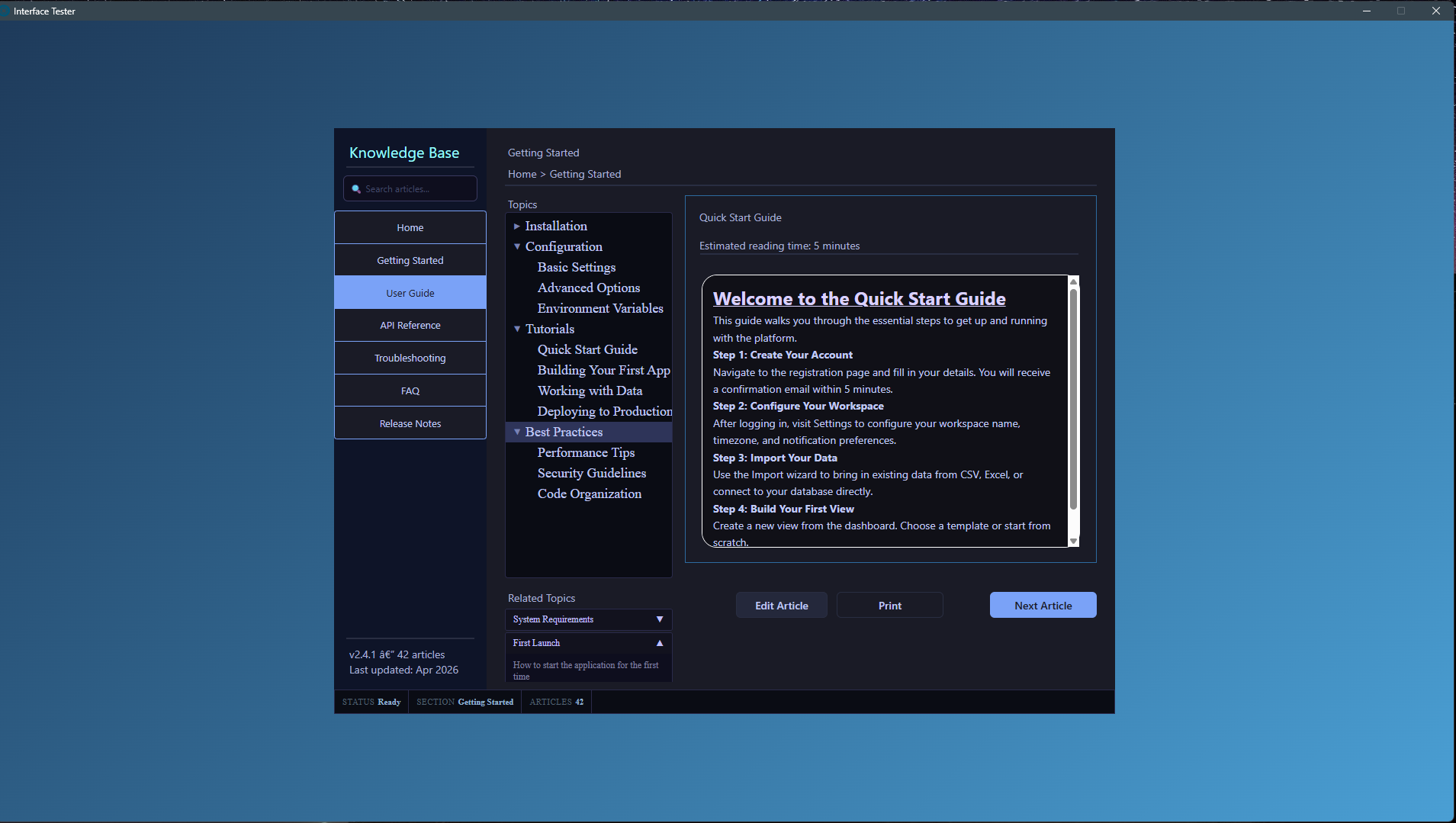
Quote from Anthony LaTorre on April 13, 2026, 9:53 pmI created a Custom ChatGPT that will create tutorials for you to help you learn how to work with the Designer... You can start simple and then ask the Custom GPT to create more advanced tutorials for you. Here it is: https://chatgpt.com/g/g-69b6e0cb8458819195371b416a06fc02-neo-win-interface-designer
And Below you will find a really simple tutorial in pdf format that was created by the Custom GPT...
Hope you find this useful...Cheers
I created a Custom ChatGPT that will create tutorials for you to help you learn how to work with the Designer... You can start simple and then ask the Custom GPT to create more advanced tutorials for you. Here it is: https://chatgpt.com/g/g-69b6e0cb8458819195371b416a06fc02-neo-win-interface-designer
And Below you will find a really simple tutorial in pdf format that was created by the Custom GPT...
Hope you find this useful...
Cheers
Uploaded files:
Quote from Vadim on April 16, 2026, 12:48 pm@anthony-latorre
Thank you so much for your contribution to the VisualNEO Win features!
Thank you so much for your contribution to the VisualNEO Win features!
Quote from Anthony LaTorre on April 16, 2026, 2:32 pmYou're welcome... and please let me know if you encounter any problems...
You're welcome... and please let me know if you encounter any problems...

Quote from fkapnist on April 20, 2026, 12:41 pmQuote from Anthony LaTorre on April 16, 2026, 2:32 pmYou're welcome... and please let me know if you encounter any problems...
@anthony-latorre
Your plugins (NeoWin Interface Developer, Titlebar Plugin V2, Round Corners.V2) give VisualNEO Win the professional appearance of Claude-generated apps. Good work!
Quote from Anthony LaTorre on April 16, 2026, 2:32 pmYou're welcome... and please let me know if you encounter any problems...
Your plugins (NeoWin Interface Developer, Titlebar Plugin V2, Round Corners.V2) give VisualNEO Win the professional appearance of Claude-generated apps. Good work!
Quote from Anthony LaTorre on April 20, 2026, 12:43 pmThank you fkapnist.
Thank you fkapnist.

Quote from joferar333 on April 23, 2026, 3:53 pm@anthony-latorre
Hi!
I'm really impressed with this amazing tool.
I'm experimenting with the GPT chat you implemented. What I can't figure out, or perhaps I'm not figuring out how to do, is how to place global Visual Neo Win variables in a canvas, for example, [DateShort]?
One last question: can the interface be used with an .mdb database?
Does it seem to me that the variables in your plugin don't use brackets []? For example, [day] > day, is that correct?
I look forward to your reply.
Hi!
I'm really impressed with this amazing tool.
I'm experimenting with the GPT chat you implemented. What I can't figure out, or perhaps I'm not figuring out how to do, is how to place global Visual Neo Win variables in a canvas, for example, [DateShort]?
One last question: can the interface be used with an .mdb database?
Does it seem to me that the variables in your plugin don't use brackets []? For example, [day] > day, is that correct?
I look forward to your reply.
Quote from Anthony LaTorre on April 23, 2026, 10:46 pmALEJANDRO, I have updated the Designer to V1.3. The Designer should now auto detect all VNW variables... and display them correctly. No need to do anything. See the Quick-Start guide for more information... Please update your Designer Version and then run the file below... Let me know if you encounter any problems...
One last question: can the interface be used with an .mdb database?
I may try to get the Datagrid to work... But it gave me a lot of problems... I will see what I can do...
ALEJANDRO, I have updated the Designer to V1.3. The Designer should now auto detect all VNW variables... and display them correctly. No need to do anything. See the Quick-Start guide for more information... Please update your Designer Version and then run the file below... Let me know if you encounter any problems...
One last question: can the interface be used with an .mdb database?
I may try to get the Datagrid to work... But it gave me a lot of problems... I will see what I can do...
Quote from Anthony LaTorre on April 24, 2026, 2:34 pmNeoWin Interface Designer UPDATE...4/24/26 to V1.3
I have updated the Designer to auto detect all VisualNeo Win Variables... Use them in your text objects and they should now display correctly... *See the Quick-Start guide for more information....Let me know if you encounter any problems...
Thanks
NeoWin Interface Designer UPDATE...4/24/26 to V1.3
I have updated the Designer to auto detect all VisualNeo Win Variables... Use them in your text objects and they should now display correctly... *See the Quick-Start guide for more information....
Let me know if you encounter any problems...
Thanks
Quote from joferar333 on April 24, 2026, 3:32 pmHi! COOL!
Thanks!!!!
Best Regards
Hi! COOL!
Thanks!!!!
Best Regards
Quote from Anthony LaTorre on April 25, 2026, 2:03 pmNeoWin Interface Designer UPDATE...4/25/26 to V1.4
Fixed bug in the Button-Bar Control... Also extended it's color styling options. You can now choose the Button-Bar's background color, hover color, selected color, and selected text color... Download from the 1st post in this topic.Let me know if you encounter any problems...
Thanks
NeoWin Interface Designer UPDATE...4/25/26 to V1.4
Fixed bug in the Button-Bar Control... Also extended it's color styling options. You can now choose the Button-Bar's background color, hover color, selected color, and selected text color... Download from the 1st post in this topic.
Let me know if you encounter any problems...
Thanks
Quote from Anthony LaTorre on April 26, 2026, 5:23 pmNeoWin Interface Designer UPDATE...4/26/26 to V1.5
Fixed bug in Button Bar that shifted buttons with icons to left-aligned. Button icons and button text now align correctly to center... Download from the 1st post in this topic.
Let me know if you encounter any problems...
Thanks
NeoWin Interface Designer UPDATE...4/26/26 to V1.5
Fixed bug in Button Bar that shifted buttons with icons to left-aligned. Button icons and button text now align correctly to center... Download from the 1st post in this topic.
Let me know if you encounter any problems...
Thanks
Quote from joferar333 on April 30, 2026, 10:55 pm@anthony-latorre, HI
With the help of the chatgpt you programmed, I managed to put together an app and project to use the interface. I have generated the layout.ndwin file, but when I try to import it into the designer to export it, it won't let me because it says the designer version doesn't match. How can I normalize it to use it?
@anthony-latorre, HI
With the help of the chatgpt you programmed, I managed to put together an app and project to use the interface. I have generated the layout.ndwin file, but when I try to import it into the designer to export it, it won't let me because it says the designer version doesn't match. How can I normalize it to use it?
Uploaded files:Quote from Anthony LaTorre on April 30, 2026, 11:46 pmALEJANDRO,
I applied a fix to the file... It seams to be displaying correctly now.
Sometimes you need to have the ChatGPT generate the file again, it will make mistakes sometimes...Also make sure you are running Version 1.5. The version number is displayed in the upper right hand corner of the Designer.
Let me know if this works.
ALEJANDRO,
I applied a fix to the file... It seams to be displaying correctly now.
Sometimes you need to have the ChatGPT generate the file again, it will make mistakes sometimes...
Also make sure you are running Version 1.5. The version number is displayed in the upper right hand corner of the Designer.
Let me know if this works.
Uploaded files:Quote from joferar333 on May 1, 2026, 9:49 am@anthony-latorre,
Hello again. Please forgive me for taking advantage of your generosity, but I am incredibly grateful for your help. I was able to import and export the file.
I copied the routines into Visual Neo, but no matter how hard I try, I can't get it to work. All the commands and instructions from chatgpt give me the result that Visual Neo doesn't recognize them.To be honest, at 67 years old, this is a bit like Greek to me, although I'm trying to understand it because it seems incredibly innovative.
I've attached the Visual Neo project file to see if you can guide me on what I'm doing wrong or how I should proceed to run this project.
Thank you again. God bless you.
Hello again. Please forgive me for taking advantage of your generosity, but I am incredibly grateful for your help. I was able to import and export the file.
I copied the routines into Visual Neo, but no matter how hard I try, I can't get it to work. All the commands and instructions from chatgpt give me the result that Visual Neo doesn't recognize them.
To be honest, at 67 years old, this is a bit like Greek to me, although I'm trying to understand it because it seems incredibly innovative.
I've attached the Visual Neo project file to see if you can guide me on what I'm doing wrong or how I should proceed to run this project.
Thank you again. God bless you.
Uploaded files:Quote from Anthony LaTorre on May 1, 2026, 1:19 pmIt's hard to tell what you are trying to accomplish... But it looks like you are trying to load a .nwid file into your project Rectangle1 object:
NWID_Load "Rectangle1" "[PubDir]GastosCasaPro.nwid".nwid files are layout files that can only be imported into the Interface Designer and then you can export them as html files... Example: runtime.html.
The runtime.html file and the runtime_subs.txt files in your project work correctly when I run them in the "Interface Tester" app that comes with the Interface Designer.
Hope that helps...
It's hard to tell what you are trying to accomplish... But it looks like you are trying to load a .nwid file into your project Rectangle1 object:
NWID_Load "Rectangle1" "[PubDir]GastosCasaPro.nwid"
.nwid files are layout files that can only be imported into the Interface Designer and then you can export them as html files... Example: runtime.html.
The runtime.html file and the runtime_subs.txt files in your project work correctly when I run them in the "Interface Tester" app that comes with the Interface Designer.
Hope that helps...
Quote from joferar333 on May 1, 2026, 2:46 pmHello again... what I'm trying to do is generate an executable in Visualneowin that will allow me to run the app. No matter how much I try, I can't get it to work. When I enter the command you mentioned and run the application, it always says it doesn't recognize the command. Basically, I'm stuck there; I can't get the project to be used in Visualneo to generate the app.
please se this video: https://globaldima.com/proyectohogar.mp4
BestRegards
Hello again... what I'm trying to do is generate an executable in Visualneowin that will allow me to run the app. No matter how much I try, I can't get it to work. When I enter the command you mentioned and run the application, it always says it doesn't recognize the command. Basically, I'm stuck there; I can't get the project to be used in Visualneo to generate the app.
please se this video: https://globaldima.com/proyectohogar.mp4
BestRegards
Quote from Anthony LaTorre on May 1, 2026, 3:15 pmI compiled your runtime.html file.
Everything is working fine on my end...
I compiled your runtime.html file.
Everything is working fine on my end...
Uploaded files:Quote from joferar333 on May 1, 2026, 3:18 pmplease se this video: https://globaldima.com/proyectohogar.mp4
please se this video: https://globaldima.com/proyectohogar.mp4
Quote from Anthony LaTorre on May 1, 2026, 3:37 pmYou don't need to use: ezEdgeCreate at startup. Use GoSub "Initialize". The Initialize subroutine will create the browser for you in Rectangle1.
See the Hogar_Test.zip file I uploaded.
You don't need to use: ezEdgeCreate at startup. Use GoSub "Initialize". The Initialize subroutine will create the browser for you in Rectangle1.
See the Hogar_Test.zip file I uploaded.