
How to create a modern setup program for your VisualNEO Win application - Forum
How to create a modern setup program for your VisualNEO Win application

Quote from luishp on August 2, 2026, 9:23 pmVisualNEO Win can create a complete Windows installer for your compiled application.
The new Modern Setup system uses Inno Setup 6 and provides a much more complete installation experience than the original VisualNEO setup engine.
It supports:
- Installation and uninstallation
- Application upgrades
- Per-user or all-users installation
- Start Menu and desktop shortcuts
- License agreement pages
- Post-installation README files
- Custom installer images
- English and Spanish installer languages
- WebView2 dependency handling
- Optional code signing
- Preservation of folders and relative file paths
The original installer remains available as Legacy Setup (compatibility) for historical projects.
For new applications, Modern Setup (recommended) should normally be used.
1. Install Inno Setup 6
Modern Setup uses the Inno Setup compiler to generate the final installer.
Before compiling your setup, install Inno Setup 6 on your development computer.
VisualNEO Win normally detects the Inno Setup compiler automatically from its standard installation folders.The compiler executable is:
ISCC.exeYou can also select it manually in the Modern Setup options.
The installer produced by your application does not require Inno Setup to be installed on the customer's computer. Inno Setup is required only on the developer's computer when creating the installer.
2. Open the setup options
Open your VisualNEO Win publication and go to:
App > CompileEnable:
Create a setup programThen open:
Modern Setup options...Select:
Modern Setup (recommended)The following choices are available:
- Modern Setup (recommended)
- Legacy Setup (compatibility)
If setup generation is disabled, no installer will be created.
Older projects that already used the original VisualNEO installer continue to use Legacy Setup unless you explicitly select Modern Setup.
3. Configure the application identity
One of the most important Modern Setup settings is the stable AppId.
The AppId uniquely identifies the installed product to Windows and Inno Setup.
VisualNEO Win generates one automatically when required.It normally has the form of a GUID:
{A42AF7B3-70DE-4D97-B941-D5AE304183AF}Important
Keep the same AppId for every later version of the same application.
Do not generate a new AppId for each release.
When the AppId remains unchanged, installing a newer version upgrades the existing application instead of creating a second independent installation.
Changing the AppId causes Windows to treat the installer as a different product.The following values should also normally remain stable between releases:
- AppId
- Application name
- Publisher
- Default installation folder
- Main executable name
4. Enter the installer information
The Modern Setup options allow you to configure the information displayed by the installer and by Windows.
Application or installer title
Enter the name that should appear in the installation wizard.
For example:My Business ApplicationThis title is also used when generating setup filenames unless another output name is specified.
Publisher
Enter your name or company name.
For example:My Company Ltd.This information may appear in Windows Apps and Features and in the installer metadata.
Application version
Enter the version of the application being distributed.
For example:1.0.0Later releases should use a higher version:
1.0.1
1.1.0
2.0.0
The AppId identifies the product, while the version identifies the particular release.
Website
You may optionally enter the product or company website.
For example:https://www.example.comOutput filename
You can customize the name of the generated installer.
For example:MyApplication-SetupThe final installer will be:
MyApplication-Setup.exe
5. Choose the installation scope
Modern Setup can install the application for either the current Windows user or all users of the computer.
Current user
The application is installed only for the Windows account running the installer.
This option normally does not require administrator privileges.
It is appropriate when:
- The user does not have administrator rights
- Each Windows account should have its own installation
- The application is intended for portable or personal use
- Installation under Program Files is not required
All users
The application is installed for every user of the computer.
This generally requires Windows administrator approval.
It is appropriate when:
- The computer is shared
- The program should be available to all Windows accounts
- The application is centrally installed by an administrator
- Installation under Program Files is preferred
Choose the scope that best matches how the application will be deployed.
6. Choose the installation folder
Configure the default destination folder for the application.
For a per-user installation, the default will normally use an appropriate user-local application folder.
For an all-users installation, it will normally use Program Files.
The installer allows the customer to confirm or change the destination during installation unless that behaviour is restricted by the generated script.
Modern Setup preserves the relative folder structure of your application files.
For example, these files:MyApplication.exe data\products.db images\logo.png documents\manual.pdfwill remain in their corresponding folders after installation.
This is an important difference from the Legacy Setup engine, which could flatten file paths and produce conflicts when different folders contained files with the same name.
7. Configure shortcuts
Modern Setup can create shortcuts for the installed application.
Start Menu shortcut
Enable this option to create a shortcut in the Windows Start Menu.
This should normally be enabled for conventional desktop applications.Desktop shortcut
Enable this option if the installer should offer or create a desktop shortcut.
A desktop shortcut is useful for applications that customers open frequently, but it should generally remain optional to avoid cluttering the user's desktop.Run after installation
Enable this option to allow the customer to start the application when setup finishes.
This normally appears as an option on the final installer page.
8. Add a license agreement
You may add a license agreement that the customer must accept before installation can continue.
Supported source formats are:
.txt .rtfWhen a license file is selected, the installer displays the standard Inno Setup license page.
The user must accept the agreement before proceeding.
VisualNEO Win does not modify your original source file. It creates a temporary copy for the setup compiler.Text files may use:
- UTF-8
- UTF-8 with BOM
- UTF-16
- Legacy Windows ANSI
VisualNEO Win converts the staging copy to a Unicode-compatible UTF-8 representation so accented and non-Latin characters are preserved.
For example, a Spanish license agreement can safely contain:
Términos y condiciones de la aplicaciónand multilingual agreements may contain Unicode characters.
9. Add a post-installation README
You may select an optional README file to display after installation.
Supported formats are:
.txt .rtfThis file can contain information such as:
- First-run instructions
- Support contact details
- Important compatibility notes
- Default login information
- Upgrade instructions
- Links to documentation
As with the license agreement, VisualNEO Win preserves the original file and creates a normalized staging copy for Inno Setup.
10. Add a custom wizard image
You can customize the large image displayed on the installer wizard.
Supported source formats are:
.bmp .pngThe recommended image proportion is:
164 × 314This is an aspect ratio, so higher-resolution images can use the same proportion.
For example:
328 × 628 492 × 942VisualNEO Win converts the selected artwork to a non-indexed 24-bit BMP for reliable use by Inno Setup.
This means palette-based PNG or BMP files can also be used without depending on the image decoding capabilities of the locally installed Inno Setup version.
For the best results:
- Use a vertical image
- Keep important content away from the edges
- Avoid very small text
- Use the recommended aspect ratio
- Check the result at normal and high DPI
The wizard image is optional. If none is selected, the installer uses its standard appearance.
11. Include external files and folders
VisualNEO Win automatically creates a private staging folder containing the compiled application and all required setup files.
The staging content may include:
- The compiled EXE
- Plug-in DLL files
- External application files
- Setup Baggage files
- ModernWebBrowser local resources
- WebView2Loader.dll when required
- License and README staging copies
- Installer artwork
Relative folder paths are preserved.
For example:
assets\images\header.png assets\scripts\application.js database\customers.db reports\templates\invoice.rtfwill be installed using the same relative directory structure.
Unsafe paths that attempt to escape the staging folder are rejected.
File collisions are also detected before creating the installer.
12. Use Setup Baggage for runtime-generated paths
VisualNEO Win can normally detect external files referenced directly by the publication.
However, it cannot always detect filenames that are constructed dynamically at runtime.
For example:
SetVar "[FileName]" "documents\[CurrentCustomer].pdf"The compiler cannot know every possible value of
[CurrentCustomer].Files that are loaded using dynamically generated names should be added explicitly through Setup Baggage.
Use Setup Baggage for:
- Dynamically selected documents
- Runtime-generated filenames
- Optional templates
- Files loaded from variables
- Supporting data not directly referenced at design time
- Complete folders required by scripts or plug-ins
This ensures that the files are copied into the setup staging area and included in the final installer.
13. ModernWebBrowser local files
Applications using the ModernWebBrowser object may load a local HTML entry point.
For example:
web\index.htmlUnlike classic embedded resources, WebView2 must navigate to a real physical file.
VisualNEO Win therefore detects local ModernWebBrowser
InitialURLvalues and examines the referenced web resource tree.It can include linked files such as:
- HTML
- CSS
- JavaScript
- Images
- Fonts
- Audio
- Video
- Other media resources
The original relative folder structure is preserved.
For example:
web\index.html web\css\styles.css web\js\application.js web\images\logo.webp web\fonts\interface.woff2will be installed in the same structure.
Files referenced only through dynamically constructed JavaScript or NeoScript paths may not be detected automatically. Add those files through Setup Baggage.
14. WebView2 support
Applications that use the ModernWebBrowser object require Microsoft Edge WebView2 Runtime.
VisualNEO Win automatically includes:
WebView2Loader.dllwhen ModernWebBrowser is used.
However,
WebView2Loader.dllis not the complete WebView2 Runtime.Most current Windows 10 and Windows 11 computers already have the Evergreen WebView2 Runtime installed, but you can optionally bundle Microsoft's Evergreen bootstrapper.
The bootstrapper file is normally named:
MicrosoftEdgeWebview2Setup.exeTo include it:
- Enable the WebView2 Evergreen bootstrapper option.
- Select
MicrosoftEdgeWebview2Setup.exe.- Compile the installer.
During installation, the bootstrapper:
- Checks whether WebView2 Runtime is already installed
- Installs or updates it when necessary
- Runs silently
- Is extracted temporarily
- Is deleted after it finishes
The Microsoft bootstrapper itself decides whether an installation or update is required.
This avoids installing a large fixed WebView2 Runtime package with every application.
15. Installer languages
Modern Setup installers can currently offer:
- English
- Spanish
The generated installer languages are independent of the VisualNEO Win editor language.
For example:
- An English VisualNEO Win installation can generate a bilingual installer.
- A Spanish VisualNEO Win installation can also generate the same bilingual installer.
The customer can select the installer language when setup starts.
Your application interface language is separate from the installer language. Modern Setup controls only the installation wizard.
16. Locate ISCC.exe
VisualNEO Win attempts to locate Inno Setup automatically.
In the Modern Setup options, the status line should indicate thatISCC.exehas been detected.
You may leave the ISCC path empty when Inno Setup 6 is installed in a standard location.
Otherwise, enter the complete path manually.For example:
C:\Program Files (x86)\Inno Setup 6\ISCC.exeThe exact path may vary according to the Inno Setup installation and Windows configuration.
Do not select the Inno Setup graphical editor. The required file is specifically:ISCC.exeThis is the command-line compiler used by VisualNEO Win.
17. Compile the setup
After configuring the application and installer options, compile the publication normally.
VisualNEO Win will:
- Compile the application.
- Collect the required files.
- Create a private staging folder.
- Preserve the files' relative paths.
- Generate a deterministic UTF-8 Inno Setup script.
- Run
ISCC.exe.- Capture the compiler output.
- Create the final setup executable.
The output folder receives files similar to:
MyApplication-Setup.iss MyApplication-Setup.iscc.log MyApplication-Setup.exe
.issfileThis is the generated Inno Setup script.
It is readable text and can be examined for diagnostic or advanced purposes.
.iscc.logfileThis contains the messages generated by the Inno Setup compiler.
If setup compilation fails, examine this file for the reason.
.exefileThis is the final installer that you distribute to customers.
The final setup executable is replaced only after a successful compilation.
If compilation fails or is cancelled, the previous valid installer remains untouched.
18. Diagnosing setup compilation errors
If Inno Setup compilation fails, VisualNEO Win keeps the diagnostic material rather than deleting it immediately.
This may include:
- The generated
.issscript- The
.iscc.logfile- The staging folder
- The files prepared for installation
Check the
.iscc.logfile first.Common causes may include:
- Inno Setup 6 is not installed
- An incorrect
ISCC.exepath- A missing external file
- Two source files targeting the same destination
- An invalid or unsafe relative path
- An inaccessible output folder
- A signing command failure
- A missing WebView2 bootstrapper
- An antivirus product blocking the generated executable
Because the staging folder is preserved after a failure, you can inspect whether all expected application files were included.
19. Cancelling setup compilation
Modern Setup handles cancellation safely.
If you cancel from the compiler settings window, VisualNEO Win does not:
- Generate a setup
- Copy sidecar files
- Delete existing output
- Launch the application
- Display an unnecessary compilation error
If you cancel while Inno Setup is running, VisualNEO Win terminates the compiler process and its child processes.
The previous successful setup remains intact.
A partial setup does not replace the valid public installer.
20. Updating an installed application
Modern Setup supports application upgrades.
To release a new version:
- Open the same VisualNEO Win project.
- Keep the same AppId.
- Increase the application version.
- Compile the application and setup again.
- Distribute the new setup executable.
For example:
Previous version: 1.0.0 New version: 1.1.0When the customer runs the new installer, Inno Setup recognizes the existing product using the AppId.
It upgrades the application without creating duplicate entries in Windows Apps and Features.
Do not change the AppId
Changing the AppId makes the new version appear to be a separate product.
The customer could then have two independent installations:
My Application 1.0 My Application 1.1instead of one upgraded installation.
21. Uninstalling the application
Modern Setup automatically creates an uninstaller.
The application appears in the appropriate Windows installed-applications interface, such as:
Settings > Apps > Installed appsor the traditional:
Control Panel > Programs and FeaturesThe uninstaller removes the files and shortcuts installed by the setup.
Files created later by the application may remain, depending on:
- Where the application stores them
- Whether they were part of the installer
- Whether they are user documents
- Whether the generated Inno Setup script is customized to remove them
In general, customer-created documents and data should not be deleted automatically during uninstall.
22. Signing the installer
Modern Setup supports optional code-signing command hooks.
Code signing allows Windows to verify the publisher of the application and installer.
It can improve:
- Customer confidence
- Windows SmartScreen reputation over time
- Antivirus reputation
- Detection of unauthorized modifications
- Publisher identification in Windows dialogs
VisualNEO Win does not store signing passwords, certificate secrets, tokens, or complete signing commands in the PUB project.
Instead, the project stores only the name of an environment variable.The default variable name is:
VISUALNEO_SIGNTOOLThe environment variable contains the signing command template.
Inno Setup replaces:
$fwith the path of the file that must be signed.
A conceptual command might resemble:signtool sign /a /fd SHA256 /tr <timestamp-server> /td SHA256 "$f"The exact signing command depends on:
- Your certificate provider
- Whether the certificate is in the Windows certificate store
- Whether it is stored on a USB token
- Whether it is hardware-backed
- The timestamp service
- The signing utility being used
Security recommendations
Prefer:
- Certificates stored in the Windows certificate store
- Hardware-backed certificates
- USB token certificates
- Password-free command templates
- Secure environment-variable configuration
- SHA-256 signing
- Trusted timestamping
Avoid:
- Passwords directly in command lines
- Passwords stored in PUB files
- Passwords written to log files
- Private certificate files distributed with the project
- Signing secrets stored in repositories
The project stores only the environment-variable name, not the secret command contents.
23. Avoid UPX for public releases
UPX executable compression should normally remain disabled for publicly distributed applications.
Although UPX can reduce executable size, it may:
- Reduce antivirus reputation
- Produce false-positive detections
- Complicate digital signing
- Make troubleshooting harder
- Provide little benefit with modern installer compression
- Interfere with some protection or analysis tools
Inno Setup already compresses the files included in the installer.
For public applications, a normal uncompressed EXE inside a compressed and optionally signed setup is usually preferable.
24. Using application licensing with Modern Setup
VisualNEO Win's application licensing system and Modern Setup can be used together.
The installer may distribute:
- The application executable
- Supporting DLLs
- External resources
- A portable
.vnlicensefileHowever, customer-specific license files should generally not be embedded into a universal installer distributed to multiple customers.
A typical commercial workflow is:
- Create one standard installer for the application.
- Send the installer to the customer.
- Generate a customer-specific
.vnlicensefile.- Send the license separately.
- Let the customer import the license using the application registration dialog.
Alternatively, for a dedicated customer-specific installer, you may include the valid
.vnlicensefile beside the application executable.That creates a portable-style licensed installation for that customer.
Be careful not to distribute one customer's license to another customer.
The private author
.vnkeymust never be included in the setup.
25. Modern Setup versus Legacy Setup
Modern Setup
Use Modern Setup for normal current applications.
It provides:
- Uninstaller
- Upgrade support
- Stable AppId
- Per-user or all-users installation
- Current Windows integration
- Preserved folder paths
- Start Menu shortcuts
- Desktop shortcuts
- License page
- README page
- Custom wizard image
- English and Spanish installer languages
- WebView2 support
- Code-signing hooks
- Inno Setup compression
- Better Unicode and DPI behaviour
- Diagnostic script and log files
Legacy Setup
Use Legacy Setup only when compatibility with an old project or historical distribution format is required.
Legacy Setup retains the original VisualNEO setup behaviour, including support for old multi-disk media.
It does not provide the complete modern installation and upgrade functionality available through Inno Setup.
For new applications, choose:Modern Setup (recommended)
26. Complete recommended workflow
A typical Modern Setup workflow is:
- Install Inno Setup 6.
- Open the publication in VisualNEO Win.
- Go to App > Compile.
- Enable Create a setup program.
- Open Modern Setup options....
- Select Modern Setup (recommended).
- Keep the automatically generated AppId.
- Enter the application title, publisher, version, and website.
- Choose current-user or all-users installation.
- Configure the destination folder.
- Select Start Menu, desktop, and run-after-install options.
- Add an optional license agreement.
- Add an optional README file.
- Add an optional custom wizard image.
- Add dynamically referenced resources through Setup Baggage.
- Configure WebView2 Evergreen bootstrapper support when required.
- Confirm that
ISCC.exeis detected.- Configure optional code signing through an environment variable.
- Compile the application and setup.
- Test installation, application startup, upgrade, and uninstallation.
27. What should be tested before distribution
Before publishing the installer, test it on a clean or representative Windows computer.
Verify:
- The setup starts correctly
- English and Spanish language selection works
- The configured title appears throughout the wizard
- The license agreement requires acceptance
- The custom image displays correctly
- Installation works with the selected scope
- Administrator elevation occurs only when expected
- All application files and subfolders are installed
- External and baggage files are present
- Plug-ins load correctly
- ModernWebBrowser local resources load correctly
- WebView2 Runtime is installed or detected
- Start Menu and desktop shortcuts work
- The application starts after installation
- The application can locate its data files
- A newer version upgrades the previous installation
- Only one installed-app entry remains after upgrading
- Uninstall removes the installed application correctly
- A digitally signed installer shows the expected publisher
- Unicode filenames and accented text remain correct
Test both installation scopes if your product offers both.
Also test the unsigned installer before adding signing. This helps distinguish application or setup problems from signing-command problems.
28. Important recommendations
Keep the same AppId for every version of the same application.
Increase the version number for every public release.
Use Modern Setup for all new projects.
Use Setup Baggage for files loaded dynamically.
Include the WebView2 Evergreen bootstrapper when your target computers may not already have WebView2 Runtime.
Do not include private signing keys, passwords, or application-license.vnkeyfiles in the project or setup.
Prefer digital signing for publicly distributed applications.
Leave UPX disabled for public releases.
Test installation, upgrade, and uninstall before every release.
Keep the generated.issand.iscc.logfiles when diagnosing a setup problem.
Summary
Modern Setup allows VisualNEO Win developers to generate a professional Windows installer based on Inno Setup 6.
It supports current Windows installation standards, clean upgrades, uninstalling, shortcuts, Unicode content, custom branding, WebView2 prerequisites, bilingual setup dialogs, and optional code signing.
For routine use:
App > Compile Create a setup program Modern Setup options... Modern Setup (recommended)Configure a permanent AppId, enter the application information, confirm that Inno Setup 6 is detected, and compile.
The generated setup executable can then be distributed to customers as the standard installer for your VisualNEO Win application.
VisualNEO Win can create a complete Windows installer for your compiled application.
The new Modern Setup system uses Inno Setup 6 and provides a much more complete installation experience than the original VisualNEO setup engine.
It supports:
- Installation and uninstallation
- Application upgrades
- Per-user or all-users installation
- Start Menu and desktop shortcuts
- License agreement pages
- Post-installation README files
- Custom installer images
- English and Spanish installer languages
- WebView2 dependency handling
- Optional code signing
- Preservation of folders and relative file paths
The original installer remains available as Legacy Setup (compatibility) for historical projects.
For new applications, Modern Setup (recommended) should normally be used.
1. Install Inno Setup 6
Modern Setup uses the Inno Setup compiler to generate the final installer.
Before compiling your setup, install Inno Setup 6 on your development computer.
VisualNEO Win normally detects the Inno Setup compiler automatically from its standard installation folders.
The compiler executable is:
ISCC.exe
You can also select it manually in the Modern Setup options.
The installer produced by your application does not require Inno Setup to be installed on the customer's computer. Inno Setup is required only on the developer's computer when creating the installer.
2. Open the setup options
Open your VisualNEO Win publication and go to:
App > Compile
Enable:
Create a setup program
Then open:
Modern Setup options...
Select:
Modern Setup (recommended)
The following choices are available:
- Modern Setup (recommended)
- Legacy Setup (compatibility)
If setup generation is disabled, no installer will be created.
Older projects that already used the original VisualNEO installer continue to use Legacy Setup unless you explicitly select Modern Setup.
3. Configure the application identity
One of the most important Modern Setup settings is the stable AppId.
The AppId uniquely identifies the installed product to Windows and Inno Setup.
VisualNEO Win generates one automatically when required.
It normally has the form of a GUID:
{A42AF7B3-70DE-4D97-B941-D5AE304183AF}
Important
Keep the same AppId for every later version of the same application.
Do not generate a new AppId for each release.
When the AppId remains unchanged, installing a newer version upgrades the existing application instead of creating a second independent installation.
Changing the AppId causes Windows to treat the installer as a different product.
The following values should also normally remain stable between releases:
- AppId
- Application name
- Publisher
- Default installation folder
- Main executable name
4. Enter the installer information
The Modern Setup options allow you to configure the information displayed by the installer and by Windows.
Application or installer title
Enter the name that should appear in the installation wizard.
For example:
My Business Application
This title is also used when generating setup filenames unless another output name is specified.
Publisher
Enter your name or company name.
For example:
My Company Ltd.
This information may appear in Windows Apps and Features and in the installer metadata.
Application version
Enter the version of the application being distributed.
For example:
1.0.0
Later releases should use a higher version:
1.0.1
1.1.0
2.0.0
The AppId identifies the product, while the version identifies the particular release.
Website
You may optionally enter the product or company website.
For example:
https://www.example.com
Output filename
You can customize the name of the generated installer.
For example:
MyApplication-Setup
The final installer will be:
MyApplication-Setup.exe
5. Choose the installation scope
Modern Setup can install the application for either the current Windows user or all users of the computer.
Current user
The application is installed only for the Windows account running the installer.
This option normally does not require administrator privileges.
It is appropriate when:
- The user does not have administrator rights
- Each Windows account should have its own installation
- The application is intended for portable or personal use
- Installation under Program Files is not required
All users
The application is installed for every user of the computer.
This generally requires Windows administrator approval.
It is appropriate when:
- The computer is shared
- The program should be available to all Windows accounts
- The application is centrally installed by an administrator
- Installation under Program Files is preferred
Choose the scope that best matches how the application will be deployed.
6. Choose the installation folder
Configure the default destination folder for the application.
For a per-user installation, the default will normally use an appropriate user-local application folder.
For an all-users installation, it will normally use Program Files.
The installer allows the customer to confirm or change the destination during installation unless that behaviour is restricted by the generated script.
Modern Setup preserves the relative folder structure of your application files.
For example, these files:
MyApplication.exe
data\products.db
images\logo.png
documents\manual.pdf
will remain in their corresponding folders after installation.
This is an important difference from the Legacy Setup engine, which could flatten file paths and produce conflicts when different folders contained files with the same name.
7. Configure shortcuts
Modern Setup can create shortcuts for the installed application.
Start Menu shortcut
Enable this option to create a shortcut in the Windows Start Menu.
This should normally be enabled for conventional desktop applications.
Desktop shortcut
Enable this option if the installer should offer or create a desktop shortcut.
A desktop shortcut is useful for applications that customers open frequently, but it should generally remain optional to avoid cluttering the user's desktop.
Run after installation
Enable this option to allow the customer to start the application when setup finishes.
This normally appears as an option on the final installer page.
8. Add a license agreement
You may add a license agreement that the customer must accept before installation can continue.
Supported source formats are:
.txt
.rtf
When a license file is selected, the installer displays the standard Inno Setup license page.
The user must accept the agreement before proceeding.
VisualNEO Win does not modify your original source file. It creates a temporary copy for the setup compiler.
Text files may use:
- UTF-8
- UTF-8 with BOM
- UTF-16
- Legacy Windows ANSI
VisualNEO Win converts the staging copy to a Unicode-compatible UTF-8 representation so accented and non-Latin characters are preserved.
For example, a Spanish license agreement can safely contain:
Términos y condiciones de la aplicación
and multilingual agreements may contain Unicode characters.
9. Add a post-installation README
You may select an optional README file to display after installation.
Supported formats are:
.txt
.rtf
This file can contain information such as:
- First-run instructions
- Support contact details
- Important compatibility notes
- Default login information
- Upgrade instructions
- Links to documentation
As with the license agreement, VisualNEO Win preserves the original file and creates a normalized staging copy for Inno Setup.
10. Add a custom wizard image
You can customize the large image displayed on the installer wizard.
Supported source formats are:
.bmp
.png
The recommended image proportion is:
164 × 314
This is an aspect ratio, so higher-resolution images can use the same proportion.
For example:
328 × 628
492 × 942
VisualNEO Win converts the selected artwork to a non-indexed 24-bit BMP for reliable use by Inno Setup.
This means palette-based PNG or BMP files can also be used without depending on the image decoding capabilities of the locally installed Inno Setup version.
For the best results:
- Use a vertical image
- Keep important content away from the edges
- Avoid very small text
- Use the recommended aspect ratio
- Check the result at normal and high DPI
The wizard image is optional. If none is selected, the installer uses its standard appearance.
11. Include external files and folders
VisualNEO Win automatically creates a private staging folder containing the compiled application and all required setup files.
The staging content may include:
- The compiled EXE
- Plug-in DLL files
- External application files
- Setup Baggage files
- ModernWebBrowser local resources
- WebView2Loader.dll when required
- License and README staging copies
- Installer artwork
Relative folder paths are preserved.
For example:
assets\images\header.png
assets\scripts\application.js
database\customers.db
reports\templates\invoice.rtf
will be installed using the same relative directory structure.
Unsafe paths that attempt to escape the staging folder are rejected.
File collisions are also detected before creating the installer.
12. Use Setup Baggage for runtime-generated paths
VisualNEO Win can normally detect external files referenced directly by the publication.
However, it cannot always detect filenames that are constructed dynamically at runtime.
For example:
SetVar "[FileName]" "documents\[CurrentCustomer].pdf"
The compiler cannot know every possible value of [CurrentCustomer].
Files that are loaded using dynamically generated names should be added explicitly through Setup Baggage.
Use Setup Baggage for:
- Dynamically selected documents
- Runtime-generated filenames
- Optional templates
- Files loaded from variables
- Supporting data not directly referenced at design time
- Complete folders required by scripts or plug-ins
This ensures that the files are copied into the setup staging area and included in the final installer.
13. ModernWebBrowser local files
Applications using the ModernWebBrowser object may load a local HTML entry point.
For example:
web\index.html
Unlike classic embedded resources, WebView2 must navigate to a real physical file.
VisualNEO Win therefore detects local ModernWebBrowser InitialURL values and examines the referenced web resource tree.
It can include linked files such as:
- HTML
- CSS
- JavaScript
- Images
- Fonts
- Audio
- Video
- Other media resources
The original relative folder structure is preserved.
For example:
web\index.html
web\css\styles.css
web\js\application.js
web\images\logo.webp
web\fonts\interface.woff2
will be installed in the same structure.
Files referenced only through dynamically constructed JavaScript or NeoScript paths may not be detected automatically. Add those files through Setup Baggage.
14. WebView2 support
Applications that use the ModernWebBrowser object require Microsoft Edge WebView2 Runtime.
VisualNEO Win automatically includes:
WebView2Loader.dll
when ModernWebBrowser is used.
However, WebView2Loader.dll is not the complete WebView2 Runtime.
Most current Windows 10 and Windows 11 computers already have the Evergreen WebView2 Runtime installed, but you can optionally bundle Microsoft's Evergreen bootstrapper.
The bootstrapper file is normally named:
MicrosoftEdgeWebview2Setup.exe
To include it:
- Enable the WebView2 Evergreen bootstrapper option.
- Select
MicrosoftEdgeWebview2Setup.exe. - Compile the installer.
During installation, the bootstrapper:
- Checks whether WebView2 Runtime is already installed
- Installs or updates it when necessary
- Runs silently
- Is extracted temporarily
- Is deleted after it finishes
The Microsoft bootstrapper itself decides whether an installation or update is required.
This avoids installing a large fixed WebView2 Runtime package with every application.
15. Installer languages
Modern Setup installers can currently offer:
- English
- Spanish
The generated installer languages are independent of the VisualNEO Win editor language.
For example:
- An English VisualNEO Win installation can generate a bilingual installer.
- A Spanish VisualNEO Win installation can also generate the same bilingual installer.
The customer can select the installer language when setup starts.
Your application interface language is separate from the installer language. Modern Setup controls only the installation wizard.
16. Locate ISCC.exe
VisualNEO Win attempts to locate Inno Setup automatically.
In the Modern Setup options, the status line should indicate that ISCC.exe has been detected.
You may leave the ISCC path empty when Inno Setup 6 is installed in a standard location.
Otherwise, enter the complete path manually.
For example:
C:\Program Files (x86)\Inno Setup 6\ISCC.exe
The exact path may vary according to the Inno Setup installation and Windows configuration.
Do not select the Inno Setup graphical editor. The required file is specifically:
ISCC.exe
This is the command-line compiler used by VisualNEO Win.
17. Compile the setup
After configuring the application and installer options, compile the publication normally.
VisualNEO Win will:
- Compile the application.
- Collect the required files.
- Create a private staging folder.
- Preserve the files' relative paths.
- Generate a deterministic UTF-8 Inno Setup script.
- Run
ISCC.exe. - Capture the compiler output.
- Create the final setup executable.
The output folder receives files similar to:
MyApplication-Setup.iss
MyApplication-Setup.iscc.log
MyApplication-Setup.exe
.iss file
This is the generated Inno Setup script.
It is readable text and can be examined for diagnostic or advanced purposes.
.iscc.log file
This contains the messages generated by the Inno Setup compiler.
If setup compilation fails, examine this file for the reason.
.exe file
This is the final installer that you distribute to customers.
The final setup executable is replaced only after a successful compilation.
If compilation fails or is cancelled, the previous valid installer remains untouched.
18. Diagnosing setup compilation errors
If Inno Setup compilation fails, VisualNEO Win keeps the diagnostic material rather than deleting it immediately.
This may include:
- The generated
.issscript - The
.iscc.logfile - The staging folder
- The files prepared for installation
Check the .iscc.log file first.
Common causes may include:
- Inno Setup 6 is not installed
- An incorrect
ISCC.exepath - A missing external file
- Two source files targeting the same destination
- An invalid or unsafe relative path
- An inaccessible output folder
- A signing command failure
- A missing WebView2 bootstrapper
- An antivirus product blocking the generated executable
Because the staging folder is preserved after a failure, you can inspect whether all expected application files were included.
19. Cancelling setup compilation
Modern Setup handles cancellation safely.
If you cancel from the compiler settings window, VisualNEO Win does not:
- Generate a setup
- Copy sidecar files
- Delete existing output
- Launch the application
- Display an unnecessary compilation error
If you cancel while Inno Setup is running, VisualNEO Win terminates the compiler process and its child processes.
The previous successful setup remains intact.
A partial setup does not replace the valid public installer.
20. Updating an installed application
Modern Setup supports application upgrades.
To release a new version:
- Open the same VisualNEO Win project.
- Keep the same AppId.
- Increase the application version.
- Compile the application and setup again.
- Distribute the new setup executable.
For example:
Previous version: 1.0.0
New version:      1.1.0
When the customer runs the new installer, Inno Setup recognizes the existing product using the AppId.
It upgrades the application without creating duplicate entries in Windows Apps and Features.
Do not change the AppId
Changing the AppId makes the new version appear to be a separate product.
The customer could then have two independent installations:
My Application 1.0
My Application 1.1
instead of one upgraded installation.
21. Uninstalling the application
Modern Setup automatically creates an uninstaller.
The application appears in the appropriate Windows installed-applications interface, such as:
Settings > Apps > Installed apps
or the traditional:
Control Panel > Programs and Features
The uninstaller removes the files and shortcuts installed by the setup.
Files created later by the application may remain, depending on:
- Where the application stores them
- Whether they were part of the installer
- Whether they are user documents
- Whether the generated Inno Setup script is customized to remove them
In general, customer-created documents and data should not be deleted automatically during uninstall.
22. Signing the installer
Modern Setup supports optional code-signing command hooks.
Code signing allows Windows to verify the publisher of the application and installer.
It can improve:
- Customer confidence
- Windows SmartScreen reputation over time
- Antivirus reputation
- Detection of unauthorized modifications
- Publisher identification in Windows dialogs
VisualNEO Win does not store signing passwords, certificate secrets, tokens, or complete signing commands in the PUB project.
Instead, the project stores only the name of an environment variable.
The default variable name is:
VISUALNEO_SIGNTOOL
The environment variable contains the signing command template.
Inno Setup replaces:
$f
with the path of the file that must be signed.
A conceptual command might resemble:
signtool sign /a /fd SHA256 /tr <timestamp-server> /td SHA256 "$f"
The exact signing command depends on:
- Your certificate provider
- Whether the certificate is in the Windows certificate store
- Whether it is stored on a USB token
- Whether it is hardware-backed
- The timestamp service
- The signing utility being used
Security recommendations
Prefer:
- Certificates stored in the Windows certificate store
- Hardware-backed certificates
- USB token certificates
- Password-free command templates
- Secure environment-variable configuration
- SHA-256 signing
- Trusted timestamping
Avoid:
- Passwords directly in command lines
- Passwords stored in PUB files
- Passwords written to log files
- Private certificate files distributed with the project
- Signing secrets stored in repositories
The project stores only the environment-variable name, not the secret command contents.
23. Avoid UPX for public releases
UPX executable compression should normally remain disabled for publicly distributed applications.
Although UPX can reduce executable size, it may:
- Reduce antivirus reputation
- Produce false-positive detections
- Complicate digital signing
- Make troubleshooting harder
- Provide little benefit with modern installer compression
- Interfere with some protection or analysis tools
Inno Setup already compresses the files included in the installer.
For public applications, a normal uncompressed EXE inside a compressed and optionally signed setup is usually preferable.
24. Using application licensing with Modern Setup
VisualNEO Win's application licensing system and Modern Setup can be used together.
The installer may distribute:
- The application executable
- Supporting DLLs
- External resources
- A portable
.vnlicensefile
However, customer-specific license files should generally not be embedded into a universal installer distributed to multiple customers.
A typical commercial workflow is:
- Create one standard installer for the application.
- Send the installer to the customer.
- Generate a customer-specific
.vnlicensefile. - Send the license separately.
- Let the customer import the license using the application registration dialog.
Alternatively, for a dedicated customer-specific installer, you may include the valid .vnlicense file beside the application executable.
That creates a portable-style licensed installation for that customer.
Be careful not to distribute one customer's license to another customer.
The private author .vnkey must never be included in the setup.
25. Modern Setup versus Legacy Setup
Modern Setup
Use Modern Setup for normal current applications.
It provides:
- Uninstaller
- Upgrade support
- Stable AppId
- Per-user or all-users installation
- Current Windows integration
- Preserved folder paths
- Start Menu shortcuts
- Desktop shortcuts
- License page
- README page
- Custom wizard image
- English and Spanish installer languages
- WebView2 support
- Code-signing hooks
- Inno Setup compression
- Better Unicode and DPI behaviour
- Diagnostic script and log files
Legacy Setup
Use Legacy Setup only when compatibility with an old project or historical distribution format is required.
Legacy Setup retains the original VisualNEO setup behaviour, including support for old multi-disk media.
It does not provide the complete modern installation and upgrade functionality available through Inno Setup.
For new applications, choose:
Modern Setup (recommended)
26. Complete recommended workflow
A typical Modern Setup workflow is:
- Install Inno Setup 6.
- Open the publication in VisualNEO Win.
- Go to App > Compile.
- Enable Create a setup program.
- Open Modern Setup options....
- Select Modern Setup (recommended).
- Keep the automatically generated AppId.
- Enter the application title, publisher, version, and website.
- Choose current-user or all-users installation.
- Configure the destination folder.
- Select Start Menu, desktop, and run-after-install options.
- Add an optional license agreement.
- Add an optional README file.
- Add an optional custom wizard image.
- Add dynamically referenced resources through Setup Baggage.
- Configure WebView2 Evergreen bootstrapper support when required.
- Confirm that
ISCC.exeis detected. - Configure optional code signing through an environment variable.
- Compile the application and setup.
- Test installation, application startup, upgrade, and uninstallation.
27. What should be tested before distribution
Before publishing the installer, test it on a clean or representative Windows computer.
Verify:
- The setup starts correctly
- English and Spanish language selection works
- The configured title appears throughout the wizard
- The license agreement requires acceptance
- The custom image displays correctly
- Installation works with the selected scope
- Administrator elevation occurs only when expected
- All application files and subfolders are installed
- External and baggage files are present
- Plug-ins load correctly
- ModernWebBrowser local resources load correctly
- WebView2 Runtime is installed or detected
- Start Menu and desktop shortcuts work
- The application starts after installation
- The application can locate its data files
- A newer version upgrades the previous installation
- Only one installed-app entry remains after upgrading
- Uninstall removes the installed application correctly
- A digitally signed installer shows the expected publisher
- Unicode filenames and accented text remain correct
Test both installation scopes if your product offers both.
Also test the unsigned installer before adding signing. This helps distinguish application or setup problems from signing-command problems.
28. Important recommendations
Keep the same AppId for every version of the same application.
Increase the version number for every public release.
Use Modern Setup for all new projects.
Use Setup Baggage for files loaded dynamically.
Include the WebView2 Evergreen bootstrapper when your target computers may not already have WebView2 Runtime.
Do not include private signing keys, passwords, or application-license .vnkey files in the project or setup.
Prefer digital signing for publicly distributed applications.
Leave UPX disabled for public releases.
Test installation, upgrade, and uninstall before every release.
Keep the generated .iss and .iscc.log files when diagnosing a setup problem.
Summary
Modern Setup allows VisualNEO Win developers to generate a professional Windows installer based on Inno Setup 6.
It supports current Windows installation standards, clean upgrades, uninstalling, shortcuts, Unicode content, custom branding, WebView2 prerequisites, bilingual setup dialogs, and optional code signing.
For routine use:
App > Compile
Create a setup program
Modern Setup options...
Modern Setup (recommended)
Configure a permanent AppId, enter the application information, confirm that Inno Setup 6 is detected, and compile.
The generated setup executable can then be distributed to customers as the standard installer for your VisualNEO Win application.

Quote from Darbdenral on August 6, 2026, 5:34 amI have created a modern setup for an app and after it is finished building I get a strange prompt. However, the setup is created successfully and it works fine, any way you can track down this message and find a reason, see image attached.
I have created a modern setup for an app and after it is finished building I get a strange prompt. However, the setup is created successfully and it works fine, any way you can track down this message and find a reason, see image attached.
Uploaded files: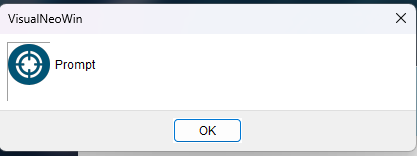
Quote from luishp on August 6, 2026, 12:31 pm@darbdenral it seems the multiple languages functionality (localization) still has some side effects, like this one.
It should show a success message instead.
I will fix it in the next version.
Thanks!
@darbdenral it seems the multiple languages functionality (localization) still has some side effects, like this one.
It should show a success message instead.
I will fix it in the next version.
Thanks!