
NeoDBpro Grid, Text Entry- and String formatting questions

Quote from Robert Marquardt on December 25, 2022, 3:10 pmHello,
I have three questions.
- Is it possible to populate a NeoDB grid without dbpOpenDatabase by setting up specific variables?
I use CSV files to store data and want to use the grid to display some fields instead of a Listbox with a fixed font.- When I use the Text Entry control, I can define a validation mask. If the entered content doesnt pass, I get a english error message. Is it possible to localize the message or should I validate it by myself via the Lose Focus event?
- How can I format strings or text, for example with leading zeroes or remove spaces from the left and right. I saw with Visual Neo Web, you can define Variable filters. Currently I use VBScript Functions like Space, Trim and Format.
PS: The links about Formatting Fields in the NeoDB Pro Help are missing.
https://neodbprohelp.visualneo.com/Grids.html#dbpSetFieldProperties
https://neodbprohelp.visualneo.com/FormattingFields.html
Thanks,
Robert
Hello,
I have three questions.
- Is it possible to populate a NeoDB grid without dbpOpenDatabase by setting up specific variables?
I use CSV files to store data and want to use the grid to display some fields instead of a Listbox with a fixed font. - When I use the Text Entry control, I can define a validation mask. If the entered content doesnt pass, I get a english error message. Is it possible to localize the message or should I validate it by myself via the Lose Focus event?
- How can I format strings or text, for example with leading zeroes or remove spaces from the left and right. I saw with Visual Neo Web, you can define Variable filters. Currently I use VBScript Functions like Space, Trim and Format.
PS: The links about Formatting Fields in the NeoDB Pro Help are missing.
https://neodbprohelp.visualneo.com/Grids.html#dbpSetFieldProperties
https://neodbprohelp.visualneo.com/FormattingFields.html
Thanks,
Robert

Quote from Gaev on December 25, 2022, 8:53 pm@robert-marquardt
1) Is it possible to populate a NeoDB grid without dbpOpenDatabase by setting up specific variables?
You can not use the NeoDB grid without first opening the Database (and a Table within it).
I use CSV files to store data and want to use the grid to display some fields instead of a Listbox with a fixed font.
I am not clear on what you mean by "ListBox with fixed font" but you might consider using a "Temporary Table" (e.g. myCSVData) which you ...
- delete any previously used Table with this name (dbpDropTable)
- create the same Table (dbpCreateTable)
- load the data in your CSV to this Table (dbpImportFromCSV)
- display the grid using dbpSetGridProperties and dbpSetFieldPropertiesNote that if your CSV fields/columns are always the same, you could replace the dbpDropTable+dbpCreateTable with just a dbpDeleteAll command.
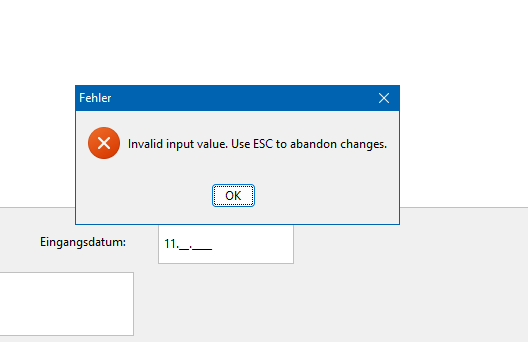
2) When I use the Text Entry control, I can define a validation mask. If the entered content doesnt pass, I get a english error message. Is it possible to localize the message or should I validate it by myself via the Lose Focus event?
According to the help file ... https://winhelp.visualneo.com/PredefinedGlobalVariables.html ... the reserved Global Variable named [LastError] can be used to trap errors ...
Disabling the Display Error Messages option on the Misc. page of the App Properties screen allows experienced VisualNEO Win authors to trap and respond to errors programmatically rather than having VisualNEO Win display the error in a dialog box. When this option is off, all error messages are placed in the [LastError] variable. You can use this variable in your Action scripts to determine when an error occurs and respond appropriately. For example:
FileWrite "parts.dat" "Append" "[PartNum]"
If "[LastError]" ">" ""
AlertBox "Error" "Unable to Parts file."
EndIfNot sure if it will trap errors resulting from violating Validation Masks.
3) How can I format strings or text, for example with leading zeroes or remove spaces from the left and right. I saw with Visual Neo Web, you can define Variable filters. Currently I use VBScript Functions like Space, Trim and Format.
VisualNEOWin (not the database plugin) has string functions to accomplish this ... https://winhelp.visualneo.com/ActionCommandReference.html
PS: The links about Formatting Fields in the NeoDB Pro Help are missing.
https://neodbprohelp.visualneo.com/Grids.html#dbpSetFieldProperties
It is not missing, just way down on the same page that shows up.
https://neodbprohelp.visualneo.com/FormattingFields.html
Not sure where this link is in the Help file, but you might look at dbpSetFieldProperties
1) Is it possible to populate a NeoDB grid without dbpOpenDatabase by setting up specific variables?
You can not use the NeoDB grid without first opening the Database (and a Table within it).
I use CSV files to store data and want to use the grid to display some fields instead of a Listbox with a fixed font.
I am not clear on what you mean by "ListBox with fixed font" but you might consider using a "Temporary Table" (e.g. myCSVData) which you ...
- delete any previously used Table with this name (dbpDropTable)
- create the same Table (dbpCreateTable)
- load the data in your CSV to this Table (dbpImportFromCSV)
- display the grid using dbpSetGridProperties and dbpSetFieldProperties
Note that if your CSV fields/columns are always the same, you could replace the dbpDropTable+dbpCreateTable with just a dbpDeleteAll command.
2) When I use the Text Entry control, I can define a validation mask. If the entered content doesnt pass, I get a english error message. Is it possible to localize the message or should I validate it by myself via the Lose Focus event?
According to the help file ... https://winhelp.visualneo.com/PredefinedGlobalVariables.html ... the reserved Global Variable named [LastError] can be used to trap errors ...
Disabling the Display Error Messages option on the Misc. page of the App Properties screen allows experienced VisualNEO Win authors to trap and respond to errors programmatically rather than having VisualNEO Win display the error in a dialog box. When this option is off, all error messages are placed in the [LastError] variable. You can use this variable in your Action scripts to determine when an error occurs and respond appropriately. For example:
FileWrite "parts.dat" "Append" "[PartNum]"
If "[LastError]" ">" ""
AlertBox "Error" "Unable to Parts file."
EndIf
Not sure if it will trap errors resulting from violating Validation Masks.
3) How can I format strings or text, for example with leading zeroes or remove spaces from the left and right. I saw with Visual Neo Web, you can define Variable filters. Currently I use VBScript Functions like Space, Trim and Format.
VisualNEOWin (not the database plugin) has string functions to accomplish this ... https://winhelp.visualneo.com/ActionCommandReference.html
PS: The links about Formatting Fields in the NeoDB Pro Help are missing.
https://neodbprohelp.visualneo.com/Grids.html#dbpSetFieldProperties
It is not missing, just way down on the same page that shows up.
Not sure where this link is in the Help file, but you might look at dbpSetFieldProperties
Quote from Robert Marquardt on December 25, 2022, 11:58 pm@gaev
Thanks for your extensive reply.
1) In my application I parse a lot of text files and like to present the data or fields in a table like manner. Therefore I use a fixed font like Courier New and add spaces after the data [1] becomes [00001__] for example, to have columns with a fixed size. However to build a temporary table to use the NeoDB grid is a nice idea and a suitable way.
2) If I use ShowErrors "False" I can evaluate [LastError] and localize the error messages.
3) I know but are there equivalents of Space, Trim and Format? I used the default string operations and they felt slow, so I replaced them by adding VBScript alternatives via the Function Library.
SetVar "[sSource]" "[%1]"
SetVar "[iTLen]" "[%2]"

StrLen "[sSource]" "[iLen]"

Loop "1" "[iTLen]-[iLen]" "[i]"
SetVar "[sSource]" "[sSource] "
EndLoop

SetVar "[StrAddSpaces]" "[sSource]"
Dim s Dim l s = "[%1]" l = [%2] s = s & space(l-len(s)) & "" publication.nbSetVar "[%3]", sRegarding the missing link:
https://neodbprohelp.visualneo.com/Grids.html#dbpSetFieldProperties
The display format affects the appearance of the field values in both the grid and VisualNEO for Windows field variables. See Formatting Fields for more information.
Formatting Fields refers to https://neodbprohelp.visualneo.com/FormattingFields.html
Thanks for your extensive reply.
1) In my application I parse a lot of text files and like to present the data or fields in a table like manner. Therefore I use a fixed font like Courier New and add spaces after the data [1] becomes [00001__] for example, to have columns with a fixed size. However to build a temporary table to use the NeoDB grid is a nice idea and a suitable way.
2) If I use ShowErrors "False" I can evaluate [LastError] and localize the error messages.
3) I know but are there equivalents of Space, Trim and Format? I used the default string operations and they felt slow, so I replaced them by adding VBScript alternatives via the Function Library.
SetVar "[sSource]" "[%1]" SetVar "[iTLen]" "[%2]" StrLen "[sSource]" "[iLen]" Loop "1" "[iTLen]-[iLen]" "[i]" SetVar "[sSource]" "[sSource] " EndLoop SetVar "[StrAddSpaces]" "[sSource]"
Dim s
Dim l

s = "[%1]"
l = [%2]

s = s & space(l-len(s)) & ""

publication.nbSetVar "[%3]", s
Regarding the missing link:
https://neodbprohelp.visualneo.com/Grids.html#dbpSetFieldProperties
The display format affects the appearance of the field values in both the grid and VisualNEO for Windows field variables. See Formatting Fields for more information.
Formatting Fields refers to https://neodbprohelp.visualneo.com/FormattingFields.html
Quote from Gaev on December 26, 2022, 2:57 am@robert-marquardt
I used the default string operations and they felt slow, so I replaced them by adding VBScript alternatives via the Function Library.
The beauty of VisualNEOWin (and VisualNEOWeb) is that you are not restricted to deploying just the built in script commands ... so experienced developers can use VBScript or Javascript where appropriate.
This little trick might improve the response time vs. iterating one space at a time ...
... setup a variable consisting of a large number of spaces (20 in this example)
... note that needs to be invoked just once per Application
SetVar "[LotsOfSpaces]" "                    "
Now, your Function can look like ...
SetVar "[sSource]" "[%1]"
SetVar "[iTLen]" "[%2]"

StrLen "[sSource]" "[iLen]"

... calculate number of spaces that need to be added
Math "[iTLen]-[iLen]" "0" "[NumberOfSpacesToAdd]"

... create a substring containing required number of spaces
SubStr "[LotsOfSpaces]" "1" "[NumberOfSpacesToAdd]" "[StringOfRequiredSpaces]"

... now concatenate the two
SetVar "[sSource]" "[sSource][StringOfRequiredSpaces]"

SetVar "[StrAddSpaces]" "[sSource]"
I used the default string operations and they felt slow, so I replaced them by adding VBScript alternatives via the Function Library.
The beauty of VisualNEOWin (and VisualNEOWeb) is that you are not restricted to deploying just the built in script commands ... so experienced developers can use VBScript or Javascript where appropriate.
This little trick might improve the response time vs. iterating one space at a time ...
... setup a variable consisting of a large number of spaces (20 in this example)
... note that needs to be invoked just once per Application
SetVar "[LotsOfSpaces]" "                    "
Now, your Function can look like ...
SetVar "[sSource]" "[%1]"
SetVar "[iTLen]" "[%2]"

StrLen "[sSource]" "[iLen]"

... calculate number of spaces that need to be added
Math "[iTLen]-[iLen]" "0" "[NumberOfSpacesToAdd]"

... create a substring containing required number of spaces
SubStr "[LotsOfSpaces]" "1" "[NumberOfSpacesToAdd]" "[StringOfRequiredSpaces]"

... now concatenate the two
SetVar "[sSource]" "[sSource][StringOfRequiredSpaces]"

SetVar "[StrAddSpaces]" "[sSource]"