
neotable css


Quote from Gaev on February 12, 2020, 3:37 pm@asmat
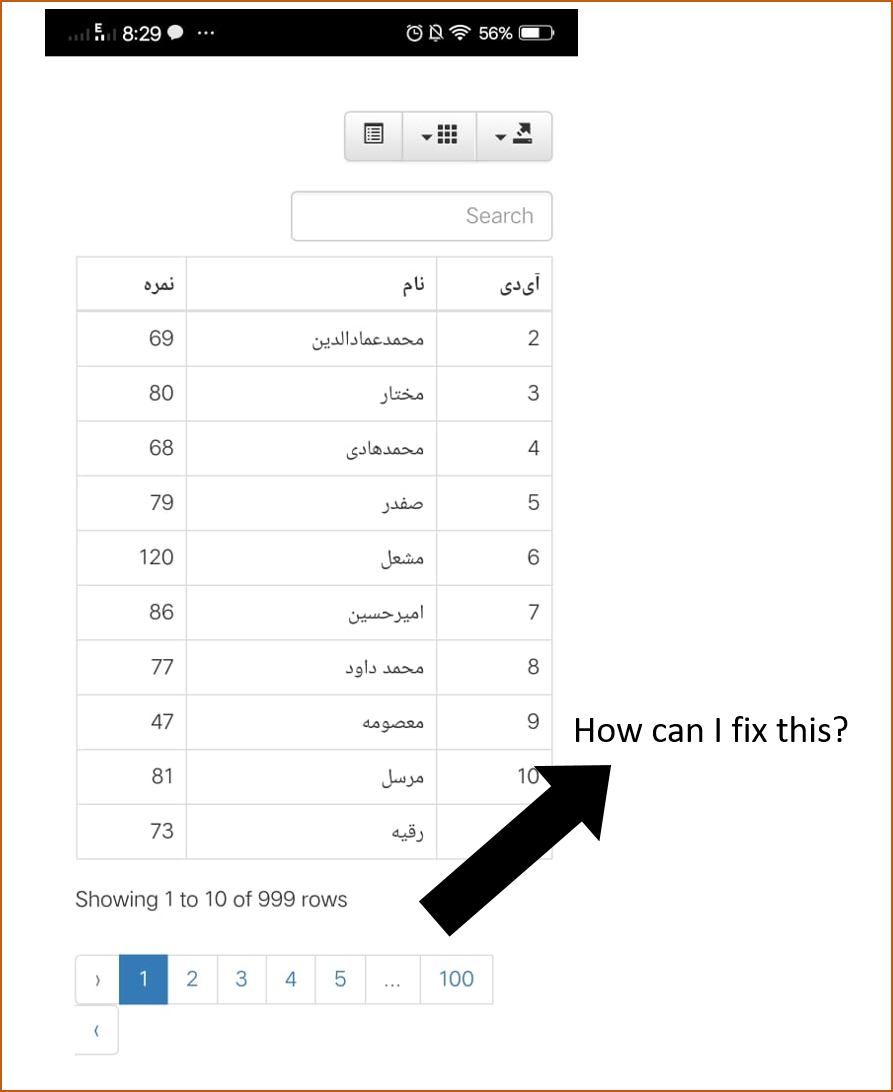
From the image, I see that ...
- it is reporting that you have 999 rows (I am assuming that is correct)
- there are ten rows per page (hence it will take 100 pages to view them all)
- the PageNavigator is allowing you to navigate directly to pages 1 to 5 and 100 (the last page)Are you suggesting that the text above the PageNavigator should be in the Persian language ? ... if not, I am not sure what you feel "needs to be fixed" ... can you explain ?
From the image, I see that ...
- it is reporting that you have 999 rows (I am assuming that is correct)
- there are ten rows per page (hence it will take 100 pages to view them all)
- the PageNavigator is allowing you to navigate directly to pages 1 to 5 and 100 (the last page)
Are you suggesting that the text above the PageNavigator should be in the Persian language ? ... if not, I am not sure what you feel "needs to be fixed" ... can you explain ?
Quote from asmat on February 12, 2020, 6:45 pmI need this the pageNavigator be from 1 to 3 and 100.
because the screen witdh of mobile is small.
I need this the pageNavigator be from 1 to 3 and 100.
because the screen witdh of mobile is small.
Quote from Gaev on February 12, 2020, 6:58 pm@asmat
because the screen witdh of mobile is small.
OK, now I see the "PageAdvance" button (>) on the line below.
I think the easiest/quickest work around might be to reduce the font-size of the text within the "Pagenavigator" button-group ... perhaps @luishp can provide the id/class for this set of elements.
because the screen witdh of mobile is small.
OK, now I see the "PageAdvance" button (>) on the line below.
I think the easiest/quickest work around might be to reduce the font-size of the text within the "Pagenavigator" button-group ... perhaps @luishp can provide the id/class for this set of elements.

Quote from luishp on February 12, 2020, 7:12 pm@asmat execute this after rendering the table to hide the 4 and 5 numbers:
BeginJS
  $(".pagination ul  li:nth-child(5)").css("display","none");
  $(".pagination ul  li:nth-child(6)").css("display","none");
EndJS
Regards.
@asmat execute this after rendering the table to hide the 4 and 5 numbers:
BeginJS
  $(".pagination ul  li:nth-child(5)").css("display","none");
  $(".pagination ul  li:nth-child(6)").css("display","none");
EndJS
Regards.
Quote from luishp on February 12, 2020, 7:15 pm@gaev @asmat I usually use the FireFox mouse right button > Inspect element to find out the css class or element id.
I think there is a similar functionality in Chrome but I prefer to use FireFox whenever possible.
It's really useful to fix problems like this one.
@gaev @asmat I usually use the FireFox mouse right button > Inspect element to find out the css class or element id.
I think there is a similar functionality in Chrome but I prefer to use FireFox whenever possible.
It's really useful to fix problems like this one.
Quote from Gaev on February 12, 2020, 7:47 pm@luishp
@asmatI usually use the FireFox right mouse button > Inspect element to find out the css class or element id.
I think there is a similar functionality in Chrome but I prefer to use FireFox whenever possible.In Chrome ...
a) at run time, right click on the element
b) in the resulting Context menu, click on the item labelled Inspect
c) in the resulting page, click on the element (in the upper half of the screen)
d) in the resulting Context menu, click on the menu item labelled Copy >>> Copy element
e) paste it in a text editor to view it
I usually use the FireFox right mouse button > Inspect element to find out the css class or element id.
I think there is a similar functionality in Chrome but I prefer to use FireFox whenever possible.
In Chrome ...
a) at run time, right click on the element
b) in the resulting Context menu, click on the item labelled Inspect
c) in the resulting page, click on the element (in the upper half of the screen)
d) in the resulting Context menu, click on the menu item labelled Copy >>> Copy element
e) paste it in a text editor to view it