
Performing action on mouse stop

Quote from Talker on October 1, 2021, 4:48 amI want to perform an action when the mouse pointer has stopped moving (both in and outside my application).
If that's not possible, a second-best solution would be to perform an action as soon as the mouse pointer moves.This probably involves storing the initial mouse position in a variable and then compare that with the current mouse position.... How do I do that?
I understand that the mouse monitor in zmFunctions might be helpful. But I don't see any info in there how to use it...
Any help would be appreciated!
I want to perform an action when the mouse pointer has stopped moving (both in and outside my application).
If that's not possible, a second-best solution would be to perform an action as soon as the mouse pointer moves.
This probably involves storing the initial mouse position in a variable and then compare that with the current mouse position.... How do I do that?
I understand that the mouse monitor in zmFunctions might be helpful. But I don't see any info in there how to use it...
Any help would be appreciated!

Quote from Vadim on October 1, 2021, 6:15 am@talker
You can try using the asNeoPopupMenu plugin (Andrei Solodyankin). This plugin allows you to get the cursor coordinates also outside the application window. But if you still need to explain zmFunctions, I can do it.
https://visualneo.com/product/asneopopupmenu
You can try using the asNeoPopupMenu plugin (Andrei Solodyankin). This plugin allows you to get the cursor coordinates also outside the application window. But if you still need to explain zmFunctions, I can do it.
Quote from Vadim on October 1, 2021, 6:37 am@talker
Commands of the zmFunctions plugin from the "Mouse and keyboard" section:
***************************************************************************
zmShowMousePointer
Purpose:
To show/hide the mouse pointer (cursor).
Syntax:
zmShowMousePointer "Condition"
Where:
Condition is False (hide mouse cursor) or True (show mouse cursor)
Example, to hide the mouse cursor::
zmShowMousePointer "False"
The mouse pointer can be hidden only within the main application window and/or its open child windows.***************************************************************************
zmSetMouseMonitor
Purpose:
To create a monitor of the state of the mouse manipulator buttons.
Allows you to catch mouse button events, execute (optionally) an assigned subroutine for mouse events, continuously monitor the screen coordinates of the cursor, the descriptor and title of windows and other Windows window elements below the cursor.
Syntax:
zmSetMouseMonitor "Monitor Type" "Subroutine" "Condition"
Where:
The monitor type is Global or Local.
The global monitor allows you to monitor mouse events across the entire monitor screen, while the local one only for the project's own window, as well as for its child windows, such as those created by the CustomWindow command.
Subprogram - the name of the subprogram to be executed whenever a mouse button is clicked.
Condition - True (yes) or False (no).
Determines whether a subroutine is executed (yes or no) for mouse events assigned in the Subroutine parameter.
Example:
zmSetMouseMonitor "Local" "OnMouseEvent" "True"
The ID of the created mouse monitor is placed in the [zmMouseMonitorID] variable.
The code of the mouse key involved is placed in the [zmMouseCode] variable, and can take one of the following values:
[zmMouseCode].
Mouse button state
zmLBD = Pressing and holding down the left mouse button
zmLBU = Releasing the left mouse button
zmRBD = Pressing and holding down the right mouse button
zmRBU = Releasing the right mouse button
zmMBD = Pressing and holding the middle mouse button
zmMBU = releasing the middle mouse button
zmMWH = scrolling mouse wheel
Only for local monitor type!
In case of mouse wheel spin event, instantaneous (NOT total) number of wheel revolutions is placed into [zmMWHDelta] variable. Positive values correspond to mouse wheel rotation away from the user, negative values correspond to wheel rotation toward the user (toward the user).
If global mouse monitor is used, variable [zmMWHDelta] will be empty.
To configure available mouse monitor properties, see the zmConfigMouseMonitor plugin command.
The zmDelMouseMonitor command is used to completely remove an installed monitor.
Notes.
The mouse monitor can be installed and reinstalled at any time when the application is running. If you reinstall the monitor, the previous monitor will be removed automatically.
Note that the mouse monitor is not a mouse event hook (MouseHook) and the subroutine assigned to it will be executed AFTER the regular application controls are triggered (and commands executed) if their events coincide.
The functionality of the regular controls is fully preserved.
A mouse monitor created but not deleted will be automatically deleted when the application is closed.***************************************************************************
zmConfigMouseMonitor
Purpose:
Operational configuration of the properties of the mouse monitor created by the zmSetMouseMonitor command.
Syntax:
zmConfigMouseMonitor "Property" "Condition"
Where:
The property is one of the two available mouse monitor properties PlayAction or GetInfo.
The Condition is YES (True) or NO (False).
Example:
zmConfigMouseMonitor "PlayAction" "False"
The PlayAction property determines whether or not the subroutine assigned to the mouse monitor in the zmSetMouseMonitor command is executed.
The GetInfo property (disabled by default) is responsible for enabling or disabling the continuous getting and displaying additional information, which includes: screen coordinates of the cursor, the handle and the title of the window currently under the cursor.
The obtained values are placed into variables:
Variable = Content.
[zmMouseX] = X screen coordinate
[zmMouseY] = Screen coordinate Y
[zmMouseWindowHandle] = window handle
[zmMouseWindowTitle] = window title
Note: if you recreate a mouse monitor with the zmSetMouseMonitor command, the properties of the newly created monitor will be reset to defaults.***************************************************************************
zmDelMouseMonitor
Purpose:
Delete the mouse button state monitor previously created by the zmSetMouseMonitor command, and delete all mouse monitor variables.
Syntax:
zmDelMouseMonitor
The command has no parameters.
Note: the created mouse monitor, will be automatically deleted when the application is closed.***************************************************************************
zmKBChangeLayout
Purpose:
Change the keyboard layout for the currently active window.
Syntax:
zmKBChangeLayout "Layout Code"
Where:
Layout code - code of the layout to be assigned, defined by numeric constants:
1 - Russian layout (Cyrillic),
2 - English (US) layout.
Example:
zmKBChangeLayout "1".
Sets the Russian keyboard layout for the currently active window.***************************************************************************
zmKBGetLayout
Purpose:
Define the keyboard layout for the current active window.
Syntax:
zmKBGetLayout "Variable"
Where:
Variable is the name of the variable to get the keyboard layout value.
Returns result as a numeric constant:
1 - Russian layout,
2 - English (US) layout.
Example:
zmKBGetLayout " [Result] "
*** Translated with www.DeepL.com/Translator (free version) ***
I use this free translator (installed on windows) - it's very handy. Select the text, press Ctrl+C+C and in the window that appears you see the translation into the language you want. I recommend it.
Commands of the zmFunctions plugin from the "Mouse and keyboard" section:
***************************************************************************
zmShowMousePointer
Purpose:
To show/hide the mouse pointer (cursor).
Syntax:
zmShowMousePointer "Condition"
Where:
Condition is False (hide mouse cursor) or True (show mouse cursor)
Example, to hide the mouse cursor::
zmShowMousePointer "False"
The mouse pointer can be hidden only within the main application window and/or its open child windows.
***************************************************************************
zmSetMouseMonitor
Purpose:
To create a monitor of the state of the mouse manipulator buttons.
Allows you to catch mouse button events, execute (optionally) an assigned subroutine for mouse events, continuously monitor the screen coordinates of the cursor, the descriptor and title of windows and other Windows window elements below the cursor.
Syntax:
zmSetMouseMonitor "Monitor Type" "Subroutine" "Condition"
Where:
The monitor type is Global or Local.
The global monitor allows you to monitor mouse events across the entire monitor screen, while the local one only for the project's own window, as well as for its child windows, such as those created by the CustomWindow command.
Subprogram - the name of the subprogram to be executed whenever a mouse button is clicked.
Condition - True (yes) or False (no).
Determines whether a subroutine is executed (yes or no) for mouse events assigned in the Subroutine parameter.
Example:
zmSetMouseMonitor "Local" "OnMouseEvent" "True"
The ID of the created mouse monitor is placed in the [zmMouseMonitorID] variable.
The code of the mouse key involved is placed in the [zmMouseCode] variable, and can take one of the following values:
[zmMouseCode].
Mouse button state
zmLBD = Pressing and holding down the left mouse button
zmLBU = Releasing the left mouse button
zmRBD = Pressing and holding down the right mouse button
zmRBU = Releasing the right mouse button
zmMBD = Pressing and holding the middle mouse button
zmMBU = releasing the middle mouse button
zmMWH = scrolling mouse wheel
Only for local monitor type!
In case of mouse wheel spin event, instantaneous (NOT total) number of wheel revolutions is placed into [zmMWHDelta] variable. Positive values correspond to mouse wheel rotation away from the user, negative values correspond to wheel rotation toward the user (toward the user).
If global mouse monitor is used, variable [zmMWHDelta] will be empty.
To configure available mouse monitor properties, see the zmConfigMouseMonitor plugin command.
The zmDelMouseMonitor command is used to completely remove an installed monitor.
Notes.
The mouse monitor can be installed and reinstalled at any time when the application is running. If you reinstall the monitor, the previous monitor will be removed automatically.
Note that the mouse monitor is not a mouse event hook (MouseHook) and the subroutine assigned to it will be executed AFTER the regular application controls are triggered (and commands executed) if their events coincide.
The functionality of the regular controls is fully preserved.
A mouse monitor created but not deleted will be automatically deleted when the application is closed.
***************************************************************************
zmConfigMouseMonitor
Purpose:
Operational configuration of the properties of the mouse monitor created by the zmSetMouseMonitor command.
Syntax:
zmConfigMouseMonitor "Property" "Condition"
Where:
The property is one of the two available mouse monitor properties PlayAction or GetInfo.
The Condition is YES (True) or NO (False).
Example:
zmConfigMouseMonitor "PlayAction" "False"
The PlayAction property determines whether or not the subroutine assigned to the mouse monitor in the zmSetMouseMonitor command is executed.
The GetInfo property (disabled by default) is responsible for enabling or disabling the continuous getting and displaying additional information, which includes: screen coordinates of the cursor, the handle and the title of the window currently under the cursor.
The obtained values are placed into variables:
Variable = Content.
[zmMouseX] = X screen coordinate
[zmMouseY] = Screen coordinate Y
[zmMouseWindowHandle] = window handle
[zmMouseWindowTitle] = window title
Note: if you recreate a mouse monitor with the zmSetMouseMonitor command, the properties of the newly created monitor will be reset to defaults.
***************************************************************************
zmDelMouseMonitor
Purpose:
Delete the mouse button state monitor previously created by the zmSetMouseMonitor command, and delete all mouse monitor variables.
Syntax:
zmDelMouseMonitor
The command has no parameters.
Note: the created mouse monitor, will be automatically deleted when the application is closed.
***************************************************************************
zmKBChangeLayout
Purpose:
Change the keyboard layout for the currently active window.
Syntax:
zmKBChangeLayout "Layout Code"
Where:
Layout code - code of the layout to be assigned, defined by numeric constants:
1 - Russian layout (Cyrillic),
2 - English (US) layout.
Example:
zmKBChangeLayout "1".
Sets the Russian keyboard layout for the currently active window.
***************************************************************************
zmKBGetLayout
Purpose:
Define the keyboard layout for the current active window.
Syntax:
zmKBGetLayout "Variable"
Where:
Variable is the name of the variable to get the keyboard layout value.
Returns result as a numeric constant:
1 - Russian layout,
2 - English (US) layout.
Example:
zmKBGetLayout " [Result] "
*** Translated with http://www.DeepL.com/Translator (free version) ***
I use this free translator (installed on windows) - it's very handy. Select the text, press Ctrl+C+C and in the window that appears you see the translation into the language you want. I recommend it.
Quote from Talker on October 1, 2021, 4:25 pmThanks Vadim for the insights on both plug-ins,
I've been testing both approaches for a couple of hours but I could get neither of them to work with what I'm trying to do. Particularly with asNeoPopupMenu I don't see any clues on how to use it.
Also, can zmFunctions potentially also respond on mouse move/stop? I only see possible responses on mouse click events.
Could you perhaps upload a simple sample project where moving the mouse pointer triggers an alert box or something? But preferably where stop moving the mouse pointer would trigger an alert box. Again, assuming that this is possible with NEO at all of course. In some other macro scripting tools this is sometimes called "wait for mouse move" or "on mouse move". I have not yet seen "on mouse stop". In C# (Visual Studio) this usually works with a global mouse hook, which is quite a complicated approach. I was hoping that NEO will make this a little bit more comprehensible.
The DeepL translator works great by the way, except it's a little bit hard for instance to insert label/menu texts from asNeoPopupMenu as they cannot be copied to the clipboard (well not without an OCR software application anyway).
Thanks Vadim for the insights on both plug-ins,
I've been testing both approaches for a couple of hours but I could get neither of them to work with what I'm trying to do. Particularly with asNeoPopupMenu I don't see any clues on how to use it.
Also, can zmFunctions potentially also respond on mouse move/stop? I only see possible responses on mouse click events.
Could you perhaps upload a simple sample project where moving the mouse pointer triggers an alert box or something? But preferably where stop moving the mouse pointer would trigger an alert box. Again, assuming that this is possible with NEO at all of course. In some other macro scripting tools this is sometimes called "wait for mouse move" or "on mouse move". I have not yet seen "on mouse stop". In C# (Visual Studio) this usually works with a global mouse hook, which is quite a complicated approach. I was hoping that NEO will make this a little bit more comprehensible.
The DeepL translator works great by the way, except it's a little bit hard for instance to insert label/menu texts from asNeoPopupMenu as they cannot be copied to the clipboard (well not without an OCR software application anyway).

Quote from HPW on October 1, 2021, 4:48 pmHello,
You may also take a look at npHook.
https://www.decsoftutils.com/Humm/Sites/Main/Views/Data/NeoPlugins/Plugins/nphook/index.html
Offers low level acess to mouse:
https://www.decsoftutils.com/Humm/Sites/Main/Views/Data/NeoPlugins/Plugins/nphook/index.html#npOnMouseHook
Regards,
Hans-Peter
Hello,
You may also take a look at npHook.
https://www.decsoftutils.com/Humm/Sites/Main/Views/Data/NeoPlugins/Plugins/nphook/index.html
Offers low level acess to mouse:
Regards,
Hans-Peter
Quote from Vadim on October 1, 2021, 8:24 pm@talker
For plugin asNeoPopupMenu to speak in English, it is enough to place file asNeoPopupMenu.loc into VisualNEO Win installation folder (if I'm not mistaken, this is how the English localization is enabled for all plugins of Andrey Solodyankin). This lock-file (asNeoPopupMenu.loc) can be translated into any language and plug-in will speak in any language.
And plugin zmFunctions has help file, I translated from it by copying text of pages (attached). I remembered that you can download the English version of the plugin here: https://visualneo.com/forum/topic/loc-file-for-zmfunctions
Example project I will try to make later.
For plugin asNeoPopupMenu to speak in English, it is enough to place file asNeoPopupMenu.loc into VisualNEO Win installation folder (if I'm not mistaken, this is how the English localization is enabled for all plugins of Andrey Solodyankin). This lock-file (asNeoPopupMenu.loc) can be translated into any language and plug-in will speak in any language.
And plugin zmFunctions has help file, I translated from it by copying text of pages (attached). I remembered that you can download the English version of the plugin here: https://visualneo.com/forum/topic/loc-file-for-zmfunctions
Example project I will try to make later.
Uploaded files:Quote from Vadim on October 1, 2021, 9:46 pmAttached is a demo project with the event "stop mouse movement". I added code to the monitor on button and to the off button, and also added a timer and one subroutine (on the subroutine tab - F12). Manipulating the delay time (pause) on the timer you can adjust the time interval, which will be considered as a mouse stop.
For the example used asNeoPopupMenu.
Attached is a demo project with the event "stop mouse movement". I added code to the monitor on button and to the off button, and also added a timer and one subroutine (on the subroutine tab - F12). Manipulating the delay time (pause) on the timer you can adjust the time interval, which will be considered as a mouse stop.
For the example used asNeoPopupMenu.
Uploaded files:Quote from Talker on October 2, 2021, 2:44 amThanks, but this appears to behave as a regular timer not as a hook. It is not responding to the mouse movements. On my system the alert box just keeps on coming back instantly even if I don't do any mouse actions at all. If I randomly change [YY] into [YYold], [XX] into [XXold] and vice versa in the application variables list or in the timer the result is exactly the same... By the way I don't see [YYold] in the Application Variables window...
Could it possibly work if it was the other way around "On Mouse Move" instead of "On Mouse Stop"?
Thanks for the tip Hans. The npHook plug-in indeed can hook a Mouse Move (not Mouse Stop), but sadly it causes my mouse pointer to behave extremely jerky making it almost unusable (giving CPU peaks of 6.4%).
Thanks, but this appears to behave as a regular timer not as a hook. It is not responding to the mouse movements. On my system the alert box just keeps on coming back instantly even if I don't do any mouse actions at all. If I randomly change [YY] into [YYold], [XX] into [XXold] and vice versa in the application variables list or in the timer the result is exactly the same... By the way I don't see [YYold] in the Application Variables window...
Could it possibly work if it was the other way around "On Mouse Move" instead of "On Mouse Stop"?
Thanks for the tip Hans. The npHook plug-in indeed can hook a Mouse Move (not Mouse Stop), but sadly it causes my mouse pointer to behave extremely jerky making it almost unusable (giving CPU peaks of 6.4%).
Quote from Vadim on October 2, 2021, 9:07 am@talker
Try this example. In the example, only what is relevant to the events being created. I separated the two events. They can work separately, but not both at once.
Of course, a special plugin would be preferable for this. But it depends on the requirements of your project.
Try this example. In the example, only what is relevant to the events being created. I separated the two events. They can work separately, but not both at once.
Of course, a special plugin would be preferable for this. But it depends on the requirements of your project.
Uploaded files:Quote from Talker on October 2, 2021, 4:52 pmI'm still getting the same result. There appears to be no response to the mouse movements (although the timer keeps running).
I recorded a debugging video so you can see what happens:
https://mega.nz/file/LJtAxaiC#F68-hIeuG0unFTpPx-WTd7wLIkSb8hB1uNWIXO_7bNg
I'm still getting the same result. There appears to be no response to the mouse movements (although the timer keeps running).
I recorded a debugging video so you can see what happens:
https://mega.nz/file/LJtAxaiC#F68-hIeuG0unFTpPx-WTd7wLIkSb8hB1uNWIXO_7bNg
Quote from Vadim on October 2, 2021, 6:43 pm@talker
Thanks for the video, it became clear that for some reason the plugin does not work. It is he who should fill the variables [X1] [Y1] [X2] [Y2]
Do you have asNeoPopupMenu plugin installed?
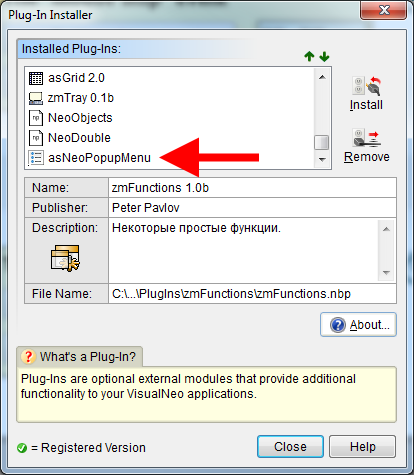
It should be in the list of installed plugins (see screenshot) - menu Options\Install Plug-Ins.
Thanks for the video, it became clear that for some reason the plugin does not work. It is he who should fill the variables [X1] [Y1] [X2] [Y2]
Do you have asNeoPopupMenu plugin installed?
It should be in the list of installed plugins (see screenshot) - menu Options\Install Plug-Ins.
Quote from Talker on October 2, 2021, 9:08 pmI have it installed. Just to make sure I reinstalled it. But the results are the same as in the video.
Is there perhaps another plug-in active as well that has something to do with this? Does it work properly on your system?
I have it installed. Just to make sure I reinstalled it. But the results are the same as in the video.
Is there perhaps another plug-in active as well that has something to do with this? Does it work properly on your system?
Uploaded files: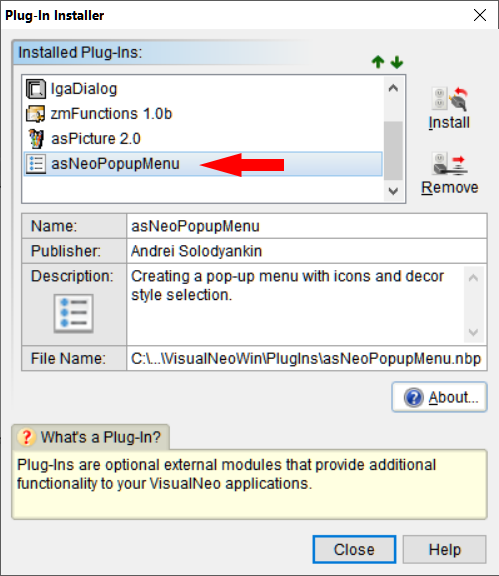
Quote from Vadim on October 2, 2021, 10:33 pm@talker
This is weird. It works fine for me (Windows 7, 32-bit). What version of Windows do you have?
Are the plugin commands highlighted in blue in the code?
Does the context menu created by the asNeoPopupMenu plugin appear?
Just in case, try running VisualNEO Win as an administrator.
This is weird. It works fine for me (Windows 7, 32-bit). What version of Windows do you have?
Are the plugin commands highlighted in blue in the code?
Does the context menu created by the asNeoPopupMenu plugin appear?
Just in case, try running VisualNEO Win as an administrator.
Quote from Talker on October 3, 2021, 2:06 amI'm using Windows 10 Home version: 20H2
Yes, the plug-in commands all seem to be highlighted in blue.
I was suspecting administrative issues too, because much to my surprise, it all of a sudden would not let me compile the executable to my desktop, neither to my documents folder (even though everything was run as administrator). However, this issue was cleared after a reboot. After that it would let me compile but the behavior was exactly the same as demonstrated in the video... In the first function (mouse stop) the alert box continuously comes up even though I'm not doing anything with the mouse. And in the second function (mouse move) the alert box does not show up (appears as "red" in the debugger) and also does not seem to respond to my mouse at all...
I have not had similar issues in other projects I have done with NEO so far (albeit I sometimes had to recompile). The executable in the "Tray Application active immediately" topic I posted earlier, everything works and renders without problems.
It would be helpful to know if any of the other forum members can reproduce the issue.
I'm using Windows 10 Home version: 20H2
Yes, the plug-in commands all seem to be highlighted in blue.
I was suspecting administrative issues too, because much to my surprise, it all of a sudden would not let me compile the executable to my desktop, neither to my documents folder (even though everything was run as administrator). However, this issue was cleared after a reboot. After that it would let me compile but the behavior was exactly the same as demonstrated in the video... In the first function (mouse stop) the alert box continuously comes up even though I'm not doing anything with the mouse. And in the second function (mouse move) the alert box does not show up (appears as "red" in the debugger) and also does not seem to respond to my mouse at all...
I have not had similar issues in other projects I have done with NEO so far (albeit I sometimes had to recompile). The executable in the "Tray Application active immediately" topic I posted earlier, everything works and renders without problems.
It would be helpful to know if any of the other forum members can reproduce the issue.
Quote from Vadim on October 3, 2021, 6:14 am@talker
Does the context menu created by the asNeoPopupMenu plugin appear? That is, I want to understand whether this plugin works at all on your computer.
Also try to disable antivirus while testing the project (if it is used).
***
In the last examples (StartStopMotionMouse.pub and StartStopMotionMouse_zm.pub), if you click on the top button "Enable tracking mouse", you need to move the mouse so the message does not appear. Stopping the mouse causes the message to appear. It is assumed that some subprogram can then be implemented instead of the message. I.e. by analyzing the mouse coordinates I simulate the event "mouse stopped moving". If you click on the "Turn off tracking mouse" button, then you can try the function below.
So, if you click on the bottom button "Enable tracking mouse", the AlertBox message will appear on the contrary when the mouse starts moving. In order for the message not to appear in this case you need not to touch the mouse (make sure the cursor does not move). This way I simulate the event "mouse started moving".
It is still not clear to me why plugins do not report the current mouse coordinates to the project. I assume the problem is the compatibility of the two plugins with Windows 10.
Yes, it would be nice if other users could test the functionality of these plugins on Windows 10. For such a test you need to run the attached demo project files below (I renamed them to make it immediately clear where which plugin is used):
Does the context menu created by the asNeoPopupMenu plugin appear? That is, I want to understand whether this plugin works at all on your computer.
Also try to disable antivirus while testing the project (if it is used).
***
In the last examples (StartStopMotionMouse.pub and StartStopMotionMouse_zm.pub), if you click on the top button "Enable tracking mouse", you need to move the mouse so the message does not appear. Stopping the mouse causes the message to appear. It is assumed that some subprogram can then be implemented instead of the message. I.e. by analyzing the mouse coordinates I simulate the event "mouse stopped moving". If you click on the "Turn off tracking mouse" button, then you can try the function below.
So, if you click on the bottom button "Enable tracking mouse", the AlertBox message will appear on the contrary when the mouse starts moving. In order for the message not to appear in this case you need not to touch the mouse (make sure the cursor does not move). This way I simulate the event "mouse started moving".
It is still not clear to me why plugins do not report the current mouse coordinates to the project. I assume the problem is the compatibility of the two plugins with Windows 10.
Yes, it would be nice if other users could test the functionality of these plugins on Windows 10. For such a test you need to run the attached demo project files below (I renamed them to make it immediately clear where which plugin is used):
Uploaded files:
Quote from CN_Iceman on October 3, 2021, 8:47 amI have run both programs and obtained the same results as shown in the video.
The X and Y coordinate data does not appear. In the first option the program shows the window that the mouse is stopped and does not let you do anything else.
The second option does nothing.
Tested on Windows 10 Pro 21H1 (64 Bits).
If I can help in anything else, just ask.
I have run both programs and obtained the same results as shown in the video.
The X and Y coordinate data does not appear. In the first option the program shows the window that the mouse is stopped and does not let you do anything else.
The second option does nothing.
Tested on Windows 10 Pro 21H1 (64 Bits).
If I can help in anything else, just ask.
Quote from CN_Iceman on October 3, 2021, 9:01 amI am testing StartStopMotionMouse_asNeoPopupMenu.pub
In the first of the options, The "MouseStop Event", I think the problem may be that the coordinates [X1] and [Y1] have no value, so [X1old] and [Y1old] are also empty.
In the second option, The "start of mouse movement" event, the same thing happens, the variables [X2] and [Y2] do not have any value either, they are empty, therefore [X2old] and [Y2old] are empty too. The program enters an infinite loop.
It seems that the plugin is not displaying the values.
I am testing StartStopMotionMouse_asNeoPopupMenu.pub
In the first of the options, The "MouseStop Event", I think the problem may be that the coordinates [X1] and [Y1] have no value, so [X1old] and [Y1old] are also empty.
In the second option, The "start of mouse movement" event, the same thing happens, the variables [X2] and [Y2] do not have any value either, they are empty, therefore [X2old] and [Y2old] are empty too. The program enters an infinite loop.
It seems that the plugin is not displaying the values.
Quote from Vadim on October 3, 2021, 9:06 am@cn_iceman
Thanks for testing!
Yes, in StartStopMotionMouse_asNeoPopupMenu.pub variables [X1] [Y1] [X2] [Y2] should be filled by asNeoPopupMenu plugin. But, for some reason it doesn't happen on Windows 10. Everything works fine on Windows 7 (32-bit).
And in the StartStopMotionMouse_zmFunctions.pub project, the mouse coordinates should appear in the [zmMouseX] [zmMouseY] variables.
Thanks for testing!
Yes, in StartStopMotionMouse_asNeoPopupMenu.pub variables [X1] [Y1] [X2] [Y2] should be filled by asNeoPopupMenu plugin. But, for some reason it doesn't happen on Windows 10. Everything works fine on Windows 7 (32-bit).
And in the StartStopMotionMouse_zmFunctions.pub project, the mouse coordinates should appear in the [zmMouseX] [zmMouseY] variables.
Quote from CN_Iceman on October 3, 2021, 9:11 am@vadim
It is a pleasure to help.
I just made a small program to test the plugin and I can definitely confirm that the asNeoMouse command does not display the [X] and [Y] variables of the mouse (at least on my system).
I think I have an alternative out there. Let me look for it and I'll post something shortly.
It is a pleasure to help.
I just made a small program to test the plugin and I can definitely confirm that the asNeoMouse command does not display the [X] and [Y] variables of the mouse (at least on my system).
I think I have an alternative out there. Let me look for it and I'll post something shortly.