
webbrowser

Quote from s7shanbe on December 8, 2021, 9:40 pmhello
I use (Browserloadfromstr) to display and print a form or text with variables in a web browser.
Part of the text is inside textArea and it is multi-line.
When I use <br> in textarea, it does not start from the next line and is seen as text (<br>)
Is there a solution to this problem in html?
hello
I use (Browserloadfromstr) to display and print a form or text with variables in a web browser.
Part of the text is inside textArea and it is multi-line.
When I use <br> in textarea, it does not start from the next line and is seen as text (<br>)
Is there a solution to this problem in html?

Quote from Gaev on December 9, 2021, 3:09 am@s7shanbe
When I use <br> in textarea, it does not start from the next line and is seen as text (<br>)
Is there a solution to this problem in html?The text inside a TextArea is not HTML; try using \n or \r\n instead of <br/>
When I use <br> in textarea, it does not start from the next line and is seen as text (<br>)
Is there a solution to this problem in html?
The text inside a TextArea is not HTML; try using \n or \r\n instead of <br/>

Quote from luishp on December 9, 2021, 9:37 pm@s7shanbe you need to replace any <br> with \n before sending the text to a TextArea. That's the only solution as TextArea's do not render HTML but plain text.
Regards.
@s7shanbe you need to replace any <br> with \n before sending the text to a TextArea. That's the only solution as TextArea's do not render HTML but plain text.
Regards.
Quote from s7shanbe on December 18, 2021, 7:42 pm@luishp @gaev
Hello
I want the textarea size to change automatically. I use the following code:<textarea class="ws16" name="matn" style="text-align: justify; border: none;width: 100%; overflow-x: hidden; overflow-y: hidden; resize: vertical" autofocus="autofocus">
[matn]
</textarea>
<script>
const textarea = document.querySelector("textarea");
textarea.addEventListener("keyup", e =>{
textarea.style.height = "63px";
let scHeight = e.target.scrollHeight;
textarea.style.height = `${scHeight}px`;
});
</script>
but this code does not work in Internet Explorer, it works properly in other browsers such as Firefox and google chrom.
How do I fix this problem in Internet Explorer?
Hello
I want the textarea size to change automatically. I use the following code:
<textarea class="ws16" name="matn" style="text-align: justify; border: none;width: 100%; overflow-x: hidden; overflow-y: hidden; resize: vertical" autofocus="autofocus">
[matn]
</textarea>
<script>
const textarea = document.querySelector("textarea");
textarea.addEventListener("keyup", e =>{
textarea.style.height = "63px";
let scHeight = e.target.scrollHeight;
textarea.style.height = `${scHeight}px`;
});
</script>
but this code does not work in Internet Explorer, it works properly in other browsers such as Firefox and google chrom.
How do I fix this problem in Internet Explorer?
Quote from luishp on December 18, 2021, 8:09 pm@s7shanbe you are using ES6 syntax (too modern for Internet Explorer). This will work:
<textarea class="ws16" name="matn" style="text-align: justify; border: none;width: 100%; overflow-x: hidden; overflow-y: hidden; resize: vertical" autofocus="autofocus">
[matn]
</textarea>
<script>
const textarea = document.querySelector("textarea");
textarea.addEventListener("keyup", function(e){
textarea.style.height = "63px";
scHeight = e.target.scrollHeight;
textarea.style.height = scHeight+"px";
});
</script>
Regards.
@s7shanbe you are using ES6 syntax (too modern for Internet Explorer). This will work:
<textarea class="ws16" name="matn" style="text-align: justify; border: none;width: 100%; overflow-x: hidden; overflow-y: hidden; resize: vertical" autofocus="autofocus">
[matn]
</textarea>
<script>
const textarea = document.querySelector("textarea");
textarea.addEventListener("keyup", function(e){
textarea.style.height = "63px";
scHeight = e.target.scrollHeight;
textarea.style.height = scHeight+"px";
});
</script>
Regards.
Quote from luishp on December 19, 2021, 2:09 pm@s7shanbe I have tested it in Internet Explorer 11 and it works fine.
I can't test on Internet Explorer 10 and you don't share any error information so it's quite difficult to help you.Sorry.
@s7shanbe I have tested it in Internet Explorer 11 and it works fine.
I can't test on Internet Explorer 10 and you don't share any error information so it's quite difficult to help you.
Sorry.
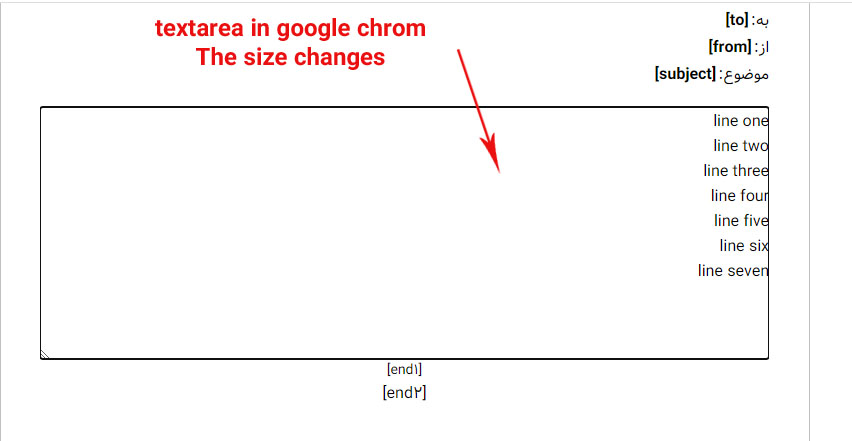
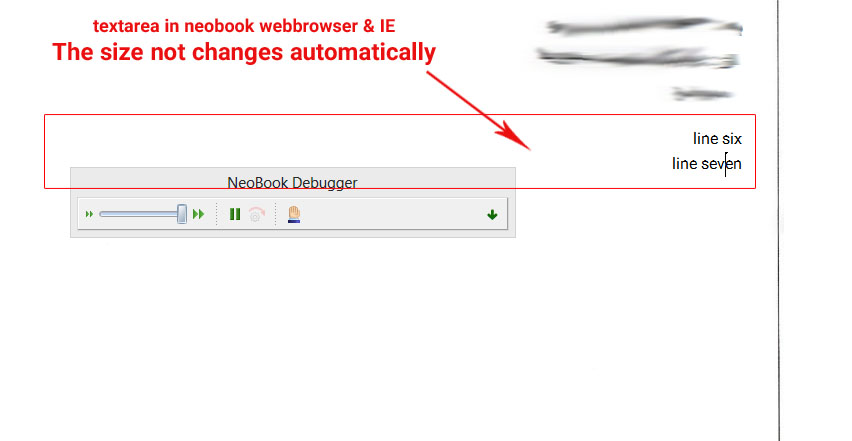
Quote from s7shanbe on December 26, 2021, 9:21 pmthis is work:
<style>
.autoheight {
    min-height: 16px;
    font-size: 16px;
    margin: 0;
    padding: 10px;
    font-family: Arial;
    line-height: 16px;
    box-sizing: border-box;
    -moz-box-sizing: border-box;
    -webkit-box-sizing: border-box;
    overflow: hidden;
    resize: none;
    border: 1px solid #ccc;
    outline: none;
    width: 200px;
}
</style>
<script src="https://code.jquery.com/jquery-2.1.1.min.js"></script>
<script>
$(document).on('blur','.autoheight',function(e) {
    var $this = $(this);
    // The text is here. Do whatever you want with it.
    console.log($this.html());
});

</script>
<div class="autoheight contenteditable" contenteditable="true">Mickey <b>Mouse</b></div>
this is work:
<style>
.autoheight {
    min-height: 16px;
    font-size: 16px;
    margin: 0;
    padding: 10px;
    font-family: Arial;
    line-height: 16px;
    box-sizing: border-box;
    -moz-box-sizing: border-box;
    -webkit-box-sizing: border-box;
    overflow: hidden;
    resize: none;
    border: 1px solid #ccc;
    outline: none;
    width: 200px;
}
</style>
<script src="https://code.jquery.com/jquery-2.1.1.min.js"></script>
<script>
$(document).on('blur','.autoheight',function(e) {
    var $this = $(this);
    // The text is here. Do whatever you want with it.
    console.log($this.html());
});

</script>
<div class="autoheight contenteditable" contenteditable="true">Mickey <b>Mouse</b></div>
Quote from luishp on December 27, 2021, 12:48 pmInternet Explorer 11 only Install on Windows 7
@s7shanbe although Microsoft is removing Internet Explorer 11 from Windows 11 (and probably form Windows 10 too), its rendering engine will continue as a part of the OS for many years to come. VisualNEO Win doesn't use directly IE11, but the its rendering engine.
Windows 7 and older Windows versions don't have Microsoft support anymore and using them is discouraged due to security reasons.Regards.
Internet Explorer 11 only Install on Windows 7
@s7shanbe although Microsoft is removing Internet Explorer 11 from Windows 11 (and probably form Windows 10 too), its rendering engine will continue as a part of the OS for many years to come. VisualNEO Win doesn't use directly IE11, but the its rendering engine.
Windows 7 and older Windows versions don't have Microsoft support anymore and using them is discouraged due to security reasons.
Regards.

Quote from fkapnist on January 3, 2022, 5:13 am<textarea rows="5" name="S1" cols="20"> line one line two line three line four </textarea>You do not need to use <BR> in a form's textarea. Just leave a blank space (as shown above) and you are done! What do you expect the < BR > to do? In textarea you can only create a line break, not a new paragraph. So < BR > is of no use anyway...)
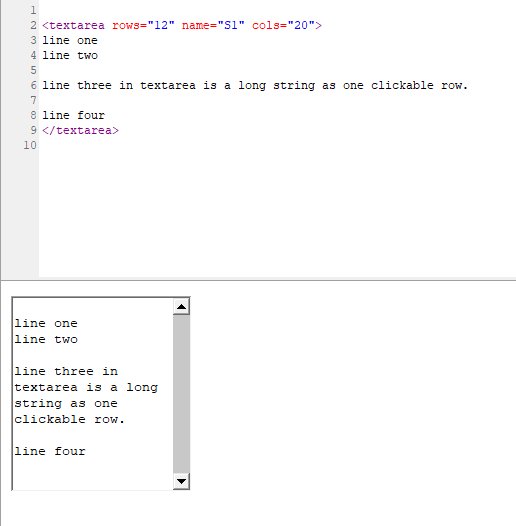
<textarea rows="5" name="S1" cols="20">
line one
line two

line three
line four
</textarea>
You do not need to use <BR> in a form's textarea. Just leave a blank space (as shown above) and you are done! What do you expect the < BR > to do? In textarea you can only create a line break, not a new paragraph. So < BR > is of no use anyway...)
Quote from fkapnist on January 3, 2022, 5:29 amIf you have a long string of text that you want to show as one clickable row in your form's textarea, you don't need to add < BR > at all, because it will word wrap for you automatically to display the entire string as one clickable row (with its appropriate line breaks)
If you have a long string of text that you want to show as one clickable row in your form's textarea, you don't need to add < BR > at all, because it will word wrap for you automatically to display the entire string as one clickable row (with its appropriate line breaks)
Quote from fkapnist on January 3, 2022, 5:35 amQuote from fkapnist on January 3, 2022, 5:29 amIf you have a long string of text that you want to show as one clickable row in your form's textarea, you don't need to add < BR > at all, because it will word wrap for you automatically to display the entire string as one clickable row (with its appropriate line breaks)
Quote from fkapnist on January 3, 2022, 5:29 amIf you have a long string of text that you want to show as one clickable row in your form's textarea, you don't need to add < BR > at all, because it will word wrap for you automatically to display the entire string as one clickable row (with its appropriate line breaks)
Uploaded files:
Quote from fkapnist on January 3, 2022, 5:51 amFor a Quick and Dirty way to change your textarea size :
I would run a second (Browserloadfromstr) action... exactly the same as the first -- except with a different textarea size... (I think that may be easier than trying to make the outdated Internet Explorer browser recognize your new code!)
For a Quick and Dirty way to change your textarea size :
I would run a second (Browserloadfromstr) action... exactly the same as the first -- except with a different textarea size... (I think that may be easier than trying to make the outdated Internet Explorer browser recognize your new code!)